
Affiliate Disclosure: This article contains affiliate links. If you purchase through these links, MeetMumtaz may earn a commission at no additional cost to you.
A messy collection of cables beneath your desk can make an otherwise organized workspace look unfinished. Power strips, monitor cords, laptop chargers, and USB cables often end up tangled around desk legs or scattered across the floor.
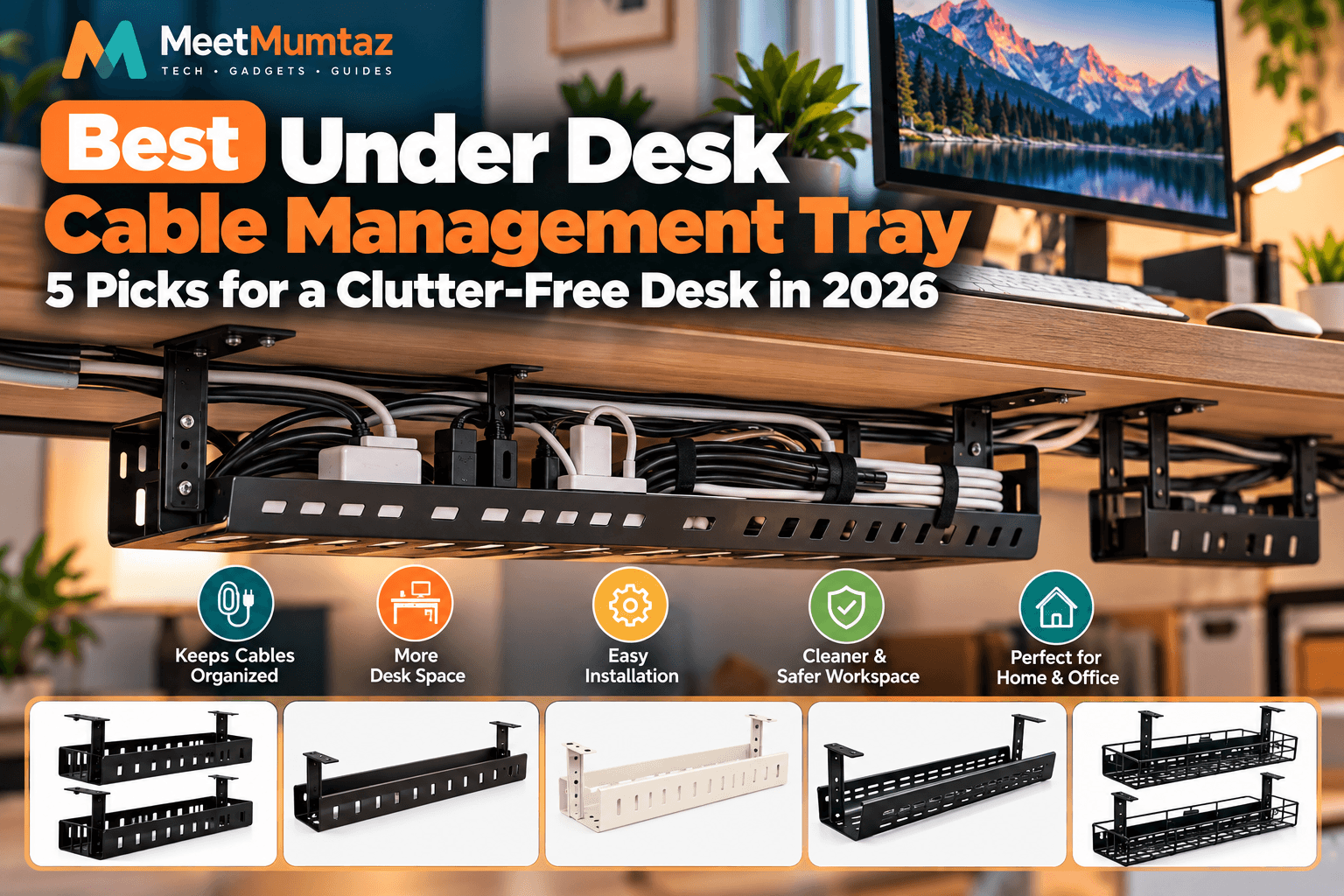
An under desk cable management tray offers a practical solution. By keeping cables, adapters, and compatible power strips beneath your desktop, a tray helps create a cleaner workstation without occupying valuable desk space.
Whether you’re building a home office, upgrading a gaming desk, or organizing a standing workstation, choosing the right cable tray can make daily cable management easier.
In this guide, we’ll compare five under-desk cable management trays, including no-screw designs, longer organizers, and two-piece systems. We’ll also explain how to choose the right size, compare installation methods, and organize cables safely.
Quick Comparison: 5 Best Under Desk Cable Management Trays
| Product | Best For | Size / Design | Price | Amazon |
|---|---|---|---|---|
| Scanfield No-Screw Tray | Easy installation | 17-inch, 2-pack | Check Price | Check Price ↗ |
| Univivi Cable Tray | Long desk setups | 32-inch, black | Check Price | Check Price ↗ |
| 32.6-Inch No-Drill Tray | Light-colored desks | 32.6-inch, ivory | Check Price | Check Price ↗ |
| 25-Inch Cable Tray | Medium-size desks | 25-inch organizer | Check Price | Check Price ↗ |
| PAMO Cable Management | Modular organization | Set of 2, black | Check Price | Check Price ↗ |
1. Scanfield Under Desk Cable Management Tray — Best for Easy No-Screw Installation
The Scanfield Under Desk Cable Management Tray is a practical option for buyers who want to organize desk cables without dealing with a complicated installation process.
This product comes as a two-pack of 17-inch cable trays, making it useful for dividing cables into separate sections. You could dedicate one tray to a power strip and adapters and use the second for excess cable length, provided everything fits safely.
Its advertised no-screw design is particularly appealing for users who prefer to avoid drilling holes in their desktop. However, you should check the mounting mechanism and desk compatibility before purchasing.
The black finish also makes it a natural match for darker desks, gaming setups, and modern office furniture.
Scanfield — Key Features, Pros and Cons
| Category | Details |
|---|---|
| Product | Scanfield Under Desk Cable Management Tray, Black |
| Key Features | 17-inch trays; two-pack configuration; advertised no-screw installation; under-desk cable organization. |
| Pros | Two separate storage sections; no-screw design; useful for organizing cables across different desk areas. |
| Cons | Each tray is only 17 inches long; desk compatibility and mounting clearance must be checked. |
| Best For | Home offices and buyers who prefer installation without screws. |
| Price | See current Amazon price |
| Buy Now | Check Price on Amazon ↗ |
Our verdict: Scanfield is worth considering if your main priorities are a two-piece layout and avoiding screw-based installation. Confirm the exact mounting requirements for your desk before ordering.
2. Univivi Under Desk Cable Management Tray — Best for Long Desk Setups
If your desk has multiple monitors, a docking station, a laptop charger, and several peripherals, you may need more cable storage space than a short organizer provides.
The Univivi 32-inch Under Desk Cable Management Tray is designed for longer cable runs beneath a desktop.
A longer tray can help keep cables grouped together instead of distributing them across several smaller accessories.
This may be especially helpful for home-office workstations with multiple devices connected to one power area.
Before buying, measure the available space beneath your desk. Also check whether desk supports, crossbars, or monitor-arm clamps could interfere with installation.
Univivi — Key Features, Pros and Cons
| Category | Details |
|---|---|
| Product | Univivi Under Desk Cable Management Tray, Black |
| Key Features | 32-inch advertised length; extended cable organization; black finish; under-desk placement. |
| Pros | Longer organization area; suitable for grouping cables from several accessories; clean appearance. |
| Cons | May be too long for compact desks; mounting method and load capacity should be verified. |
| Best For | Long desks, multi-monitor setups, and home offices with numerous cables. |
| Price | See current Amazon price |
| Buy Now | Check Price on Amazon ↗ |
Our verdict: Univivi is a strong candidate for buyers who prioritize continuous cable organization along a longer desk. Its actual installation method should be checked on the product listing.
3. 32.6-Inch No-Drill Under Desk Cable Management Tray — Best for Light-Colored Desks
The 32.6-inch No-Drill Cable Organizer in Ivory combines a long cable-management layout with a lighter color option.
Most cable trays are available in black, which may stand out beneath white or light-colored desks. An ivory organizer can create a more coordinated appearance in bright home offices.
The advertised no-drill installation is another advantage for buyers who prefer not to modify their desks.
However, no-drill systems can use different mounting methods, and not all are suitable for every desktop thickness or material.
Always verify the attachment method, required clearance, and weight limit before installing a power strip or bulky adapters.
32.6-Inch Ivory Tray — Key Features, Pros and Cons
| Category | Details |
|---|---|
| Product | 32.6-Inch No-Drill Under Desk Cable Organizer, Ivory |
| Key Features | 32.6-inch advertised length; ivory finish; no-drill design; under-desk cable organization. |
| Pros | Long storage area; lighter finish for matching desks; avoids drilling when installed as intended. |
| Cons | Requires sufficient under-desk clearance; exact attachment method and load rating need confirmation. |
| Best For | White, ivory, and light-wood desk setups. |
| Price | See current Amazon price |
| Buy Now | Check Price on Amazon ↗ |
Our verdict: This ivory tray is worth considering if you want a long organizer without drilling and prefer a lighter desktop aesthetic.
4. 25-Inch Cable Management Under Desk Tray — Best for Medium-Size Desks
Not every desk requires a 32-inch cable tray.
For medium-size workstations, a 25-inch cable management under desk tray may offer a practical balance between storage space and installation flexibility.
The advertised 25-inch length provides room for organizing a collection of cables without requiring as much continuous desk space as a longer tray.
This size may suit desks with a monitor, laptop charger, keyboard, mouse, and a modest number of other accessories.
Because the supplied product title does not identify a manufacturer or mounting method, buyers should carefully review the exact Amazon listing before purchase.
25-Inch Cable Tray — Key Features, Pros and Cons
| Category | Details |
|---|---|
| Product | 25-Inch Cable Management Under Desk Tray |
| Key Features | 25-inch advertised length; under-desk cable organization; medium-length layout. |
| Pros | Balanced size for medium desks; keeps cables off the desktop; may fit where longer trays cannot. |
| Cons | Less continuous space than 32-inch models; brand, mounting method, and capacity require verification. |
| Best For | Medium-size desks with a moderate number of accessories. |
| Price | See current Amazon price |
| Buy Now | Check Price on Amazon ↗ |
Our verdict: A 25-inch organizer may be the right middle ground if a short tray feels restrictive but a full-length organizer is unnecessary.
5. PAMO Cable Management Under Desk — Best for Modular Cable Organization
The PAMO Cable Management Under Desk Set of 2 is designed for users who prefer a modular cable-management system.
Instead of one continuous tray, this package provides two separate steel organizers that can be positioned where cables need to be collected.
PAMO’s open, beveled design helps provide access to cables, adapters, and compatible power strips. The product uses screw-in mounting and powder-coated steel construction.
Published specifications for the two-piece version list approximately 44 × 10 × 12 cm per organizer. Package descriptions vary regarding the number of included cable ties, so confirm the contents of your selected listing.
This design may be particularly useful for standing desks and larger workstations where cables need to be organized in separate locations.
PAMO — Key Features, Pros and Cons
| Category | Details |
|---|---|
| Product | PAMO Cable Management Under Desk, Set of 2, Black |
| Key Features | Two coated-steel organizers; screw-in installation; beveled open-access design; approximately 44 cm length per piece. |
| Pros | Flexible two-piece layout; sturdy steel construction; easy cable access; suitable for separating cable groups. |
| Cons | Requires screws and suitable mounting surface; installation takes more effort than a no-drill option. |
| Best For | Home offices, gaming desks, and workstations needing separate cable-management zones. |
| Price | See current Amazon price |
| Buy Now | Check Price on Amazon ↗ |
Our verdict: PAMO is a good option for buyers who want two separate steel cable organizers and are comfortable with screw-based installation.
Why Do You Need an Under Desk Cable Management Tray?
An under desk cable management tray does more than improve the appearance of a workspace.
1. Keeps Cables Away From Your Feet
Writing
Visible cable clutter can distract from an otherwise organized desk. Moving excess cable length beneath the desktop helps create a cleaner appearance, especially when using external monitors and multiple accessories. If you’re building a dual-screen workspace, our dual monitor stand buying guide explores mounting options that can complement a well-organized cable system.
2. Creates a Cleaner Workstation
A multi-monitor workstation often contains more cables than a simple laptop setup. Start by identifying which devices remain connected permanently, such as monitors, speakers, and docking stations. If your laptop connects to several peripherals, our universal laptop docking station guide discusses ways to simplify compatible monitor and accessory connections.
3. Makes Cable Maintenance Easier
When cables are organized into clear groups, identifying and replacing a connection becomes more convenient.
An accessible tray can help you locate a monitor cable, laptop charger, or power adapter without searching through a tangled pile.
4. Helps Organize Standing Desks
Height-adjustable desks require special attention to cable routing.
A suitable under-desk organizer can help keep accessories together, but cables must still have enough slack to accommodate the desk’s full movement.
Cable Management Tray Under Desk: How to Choose the Right One
Not every cable management tray under desk setup has the same requirements.
Before buying, consider the following factors.
Tray Length
Start by measuring the available mounting space beneath your desktop.
A 17-inch tray may be sufficient for a smaller group of cables, while a 25-inch or 32-inch model can provide a longer organization area.
Remember that advertised length does not necessarily equal usable interior space.
Installation Method
Under-desk cable trays generally use screw-based or no-drill attachment methods.
Screw-mounted organizers can provide a secure installation when attached correctly to a suitable desktop.
No-drill designs may use clamps or other mechanisms, making them appealing to users who prefer not to drill.
However, compatibility depends on the specific product and desk construction.
Weight Capacity
A tray holding only cables has different requirements from one supporting a power strip and several large adapters.
Check the manufacturer’s maximum supported load before installation.
Material and Durability
Steel cable trays are popular because they can provide rigid support and a durable structure.
Other materials may be suitable for lighter cable-management tasks.
The best choice depends on what you intend to store and the mounting surface.
Accessibility
An open-access design can make it easier to adjust connections.
If you frequently connect or disconnect accessories, prioritize a tray that allows you to reach the cables without removing the entire organizer.
Cable Management Under Desk Tray: No-Drill vs. Screw-Mounted
| Feature | No-Drill Tray | Screw-Mounted Tray |
|---|---|---|
| Installation | Usually easier | Requires tools |
| Desk modification | Typically none | May require holes |
| Compatibility | Depends on clamp or attachment design | Depends on desk material and thickness |
| Removal | Often simpler | Requires removing screws |
| Ideal buyer | Users avoiding drilling | Users comfortable with permanent mounting |
Neither installation method is universally better.
For a desk you don’t want to drill, a compatible no-drill tray may be more convenient.
For a workstation where permanent installation is acceptable, a properly installed screw-mounted system may be suitable.
Always follow the manufacturer’s instructions and load limits.
How to Install an Under Desk Cable Management Tray
A little planning before installation can make your cable-management system easier to use.
Step 1: Disconnect and Identify Your Cables
Turn off and unplug relevant equipment before organizing connections.
Identify monitor cables, USB cables, charging cords, and power-strip connections.
Step 2: Measure the Installation Area
Check the available length, width, and depth beneath your desktop.
Look for desk supports, drawers, crossbars, and other obstructions.
Step 3: Position the Tray
Choose a location that keeps cables accessible while preventing interference with your knees, chair, or desk mechanisms.
For standing desks, check clearance at both the lowest and highest positions.
Step 4: Attach the Tray
Follow the supplied instructions for the specific mounting method.
Do not exceed the recommended torque, desk-thickness range, or weight limit.
Step 5: Organize the Cables
Route cables neatly into the organizer.
Use suitable reusable cable ties or straps to group related cables without overtightening them.
Step 6: Test Your Setup
Reconnect equipment and verify that cables are not pinched, stretched, or caught on moving components.
For height-adjustable desks, test the full movement range carefully.
How to Organize a Desk With Multiple Monitors and Accessories
A multi-monitor workstation often contains more cables than a simple laptop setup.
Start by identifying which devices remain connected permanently, such as monitors, speakers, and docking stations.
Place the tray where these cables naturally converge, avoiding sharp bends and unnecessary tension.
If your laptop connects to several peripherals, our universal laptop docking station guide discusses ways to simplify compatible monitor and accessory connections.
A vertical laptop holder can also help reduce desktop clutter. Our laptop vertical stand buying guide explains how upright laptop storage can complement an external-monitor workstation.
Finally, use cable labels or reusable ties to make future maintenance easier.
Common Mistakes to Avoid
Choosing a tray without measuring: A long organizer may interfere with desk supports or other mounted accessories.
Ignoring load limits: Power strips and large adapters can be heavier than expected.
Blocking ventilation: Some power supplies require unobstructed airflow and should not be packed tightly together.
Overtightening cable ties: Excessive pressure can damage cable jackets or connectors.
Forgetting standing-desk movement: Insufficient cable slack can cause pulling or disconnection.
Overloading electrical outlets: Cable management improves organization but does not increase the electrical capacity of an outlet or power strip.
Frequently Asked Questions
What is the best under desk cable management tray?
The best option depends on your desk dimensions, cable quantity, mounting preferences, and the weight of the equipment you want to organize. Scanfield may appeal to buyers seeking a no-screw two-pack, while PAMO offers a screw-mounted steel two-piece system.
Is a no-drill cable management tray better?
A no-drill design is useful when you want to avoid making holes in your desk. However, its suitability depends on the mounting mechanism, desktop thickness, and supported load.
What size cable management tray do I need?
Measure the space available beneath your desk and estimate how much cable storage you require. Smaller desks may suit 17-inch organizers, while larger workstations may benefit from 25-inch or 32-inch options.
Can I put a power strip inside a cable management tray?
Only if the tray and power strip are suitable for that arrangement. Follow both manufacturers’ instructions, avoid covering ventilation openings, and never exceed electrical or mechanical load ratings.
Are cable management trays suitable for standing desks?
Yes, provided the tray is compatible with the desk and all cables have enough slack to accommodate the full height-adjustment range.
Can I install an under desk cable tray on a glass desk?
Do not assume that standard clamps or screw-mounted trays are suitable for glass. Use only products explicitly approved for your particular desktop material and thickness.
Final Verdict: Which Under Desk Cable Management Tray Should You Buy?
An under desk cable management tray is a useful upgrade for anyone looking to organize cables and create a cleaner workspace.
The Scanfield 17-inch two-pack is worth considering if you want a no-screw design with two separate storage sections.
The Univivi 32-inch tray may be a good choice for a longer desk, while the 32.6-inch ivory no-drill organizer offers a lighter-colored alternative.
For medium-size workstations, the 25-inch cable tray provides another length option.
Finally, the PAMO two-piece steel system is particularly appealing if you want separate organizers and prefer a screw-mounted installation.
Before purchasing, compare each product’s exact dimensions, mounting requirements, and load capacity.
The right tray should fit your desk securely, keep cables accessible, and support a safer, more organized workstation.