
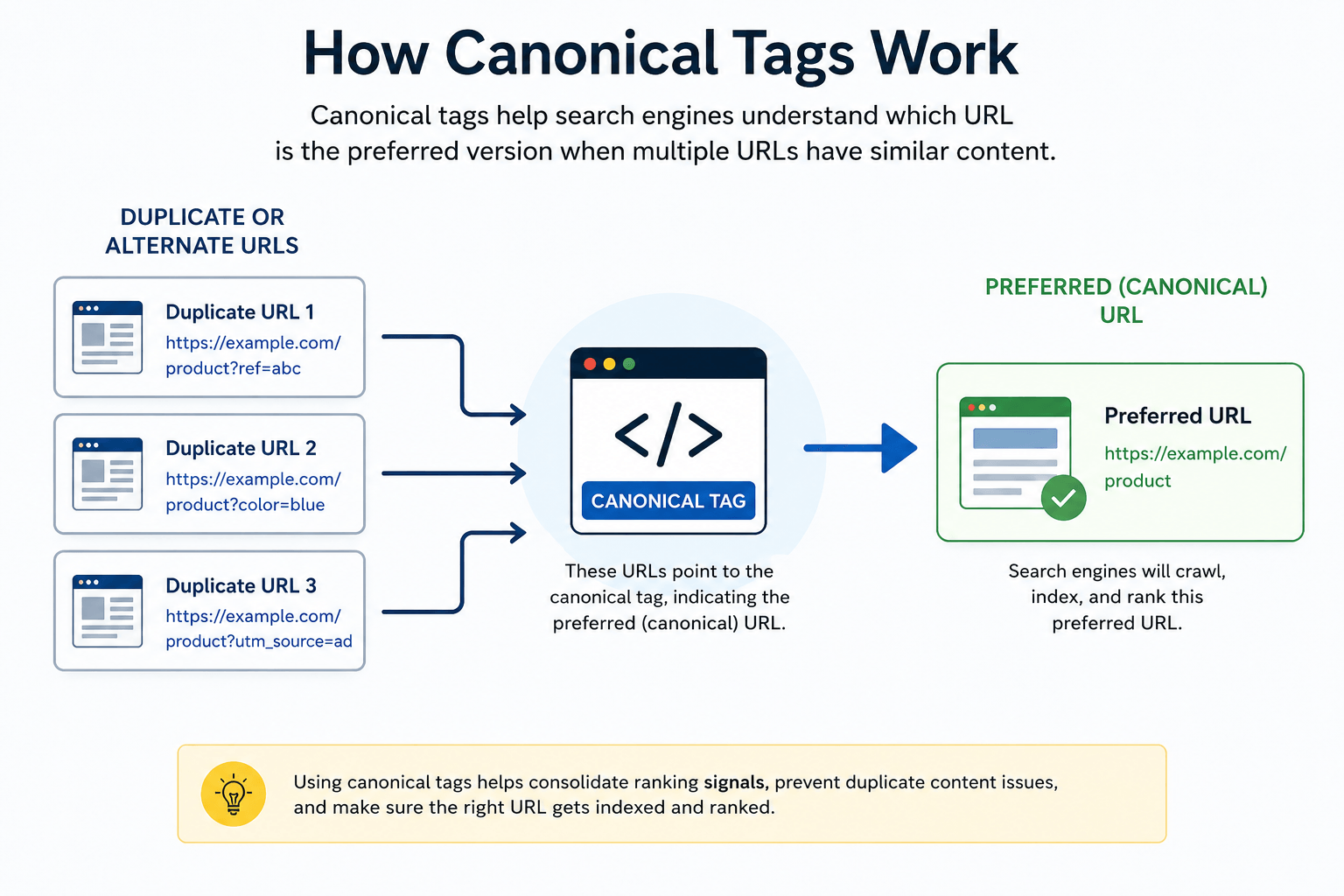
Duplicate and similar URLs can make it difficult for search engines to determine which version of a page should be treated as the primary one. A Canonical Tag Generator helps you create the HTML canonical element that identifies your preferred URL without having to write the markup manually.
Canonical tags are particularly useful when the same or very similar content can be accessed through multiple URLs—for example, URLs containing parameters, tracking codes, category paths, or alternative versions of a page.
Our free Canonical Tag Generator makes the process simple: enter your preferred URL, generate the canonical tag, copy the HTML, and add it to the appropriate page.
In this guide, you’ll learn what canonical tags are, how canonical tag HTML works, when to use canonical URLs, how to check them, and how Google may interpret canonicalization signals.
What Is a Canonical Tag?
A canonical tag is an HTML element used to indicate the preferred version of a webpage when identical or substantially similar content is available through multiple URLs.
A canonical element looks like this:
<link rel="canonical" href="https://example.com/preferred-page/" />It is normally placed inside the <head> section of a webpage.
Imagine the same product or article can be reached through several URLs:
https://example.com/product/
https://example.com/product/?color=blue
https://example.com/product/?utm_source=newsletter
If the main URL you want search engines to associate with the content is:
https://example.com/product/the alternative versions can point toward that preferred URL using a canonical tag.
Conceptually:
Duplicate URL 1 ─┐
Duplicate URL 2 ─┼──→ Canonical Tag ──→ Preferred URL
Duplicate URL 3 ─┘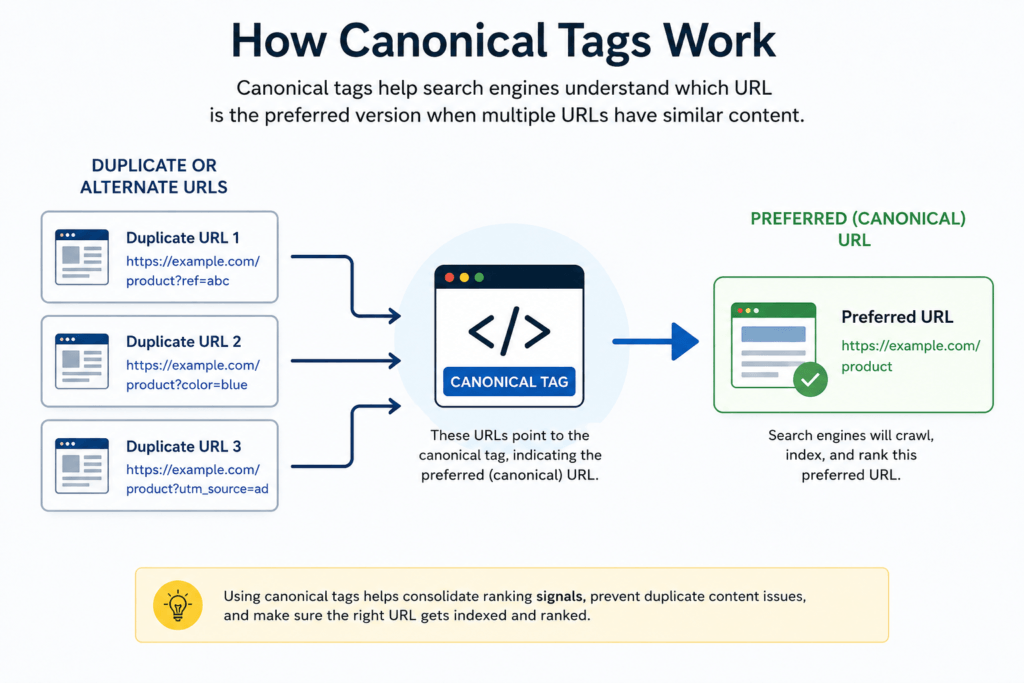
This should be one standalone diagram, not a collage.
Image concept: Three similar/duplicate URLs on the left pointing through a canonical-tag symbol toward one large Preferred URL on the right.
Filename: how-canonical-tags-work.webp
ALT: How a canonical tag points duplicate URLs to a preferred URL
Caption: A canonical tag indicates which URL should be treated as the preferred version among duplicate or similar pages.
Why Are Canonical Tags Important for SEO?
Websites can unintentionally create multiple URLs containing the same or very similar content.
This may happen because of:
- URL parameters
- Tracking parameters
- Filtering and sorting
- Product variations
- HTTP and HTTPS versions
- WWW and non-WWW versions
- Category or archive paths
- Print-friendly pages
- Content syndication or duplication
- Different URL structures leading to similar content
Canonicalization helps communicate which URL you consider the primary version.
For example:
example.com/shoes/
example.com/shoes/?sort=price
example.com/shoes/?utm_source=email
If /shoes/ is the preferred page, the other versions can reference:
<link rel="canonical" href="https://example.com/shoes/" />This helps create clearer canonicalization signals instead of treating every URL variation as a separate preferred page.
What Is a Canonical Tag Generator?
A Canonical Tag Generator creates properly formatted canonical HTML from the preferred URL you provide.
Instead of manually typing:
<link rel="canonical" href="https://example.com/page/" />you enter the URL into the generator and copy the generated tag.
This is especially helpful for beginners, content managers, website owners, and developers who need a quick way to prepare canonical markup.
Try Our Free Canonical Tag Generator
Use the MeetMumtaz Canonical Tag Generator to create your canonical tag online.
Internal link placement:
Anchor: Canonical Tag Generator
URL: /canonical-tag-generator/
The process is straightforward:
Enter Preferred URL → Generate Canonical Tag → Copy HTML → Add to Page → Verify
No paid subscription is required to use the tool.
Canonical Tag HTML: What Does the Code Mean?
One of our target topics is canonical tag generator HTML, so let’s understand the actual markup.
A standard canonical element contains three important pieces:
<link rel="canonical" href="https://example.com/preferred-page/" />link
This identifies the HTML element as a link relationship.
rel="canonical"
This declares that the link represents the canonical version of the page.
href="..."
This contains the preferred canonical URL.
For example:
<link rel="canonical" href="https://meetmumtaz.com/canonical-tag-generator/" />This tells search engines that the specified URL is the page’s declared canonical.
Where Should the Canonical Tag Be Placed?
The canonical element belongs inside the HTML <head> section.
A simplified page might look like this:
<!DOCTYPE html>
<html>
<head>

<title>Example Page</title>

<link rel="canonical" href="https://example.com/preferred-page/" />

</head>

<body>
Page content
</body>
</html>
You generally should not place the canonical element somewhere in the visible body content and expect it to work like normal metadata.
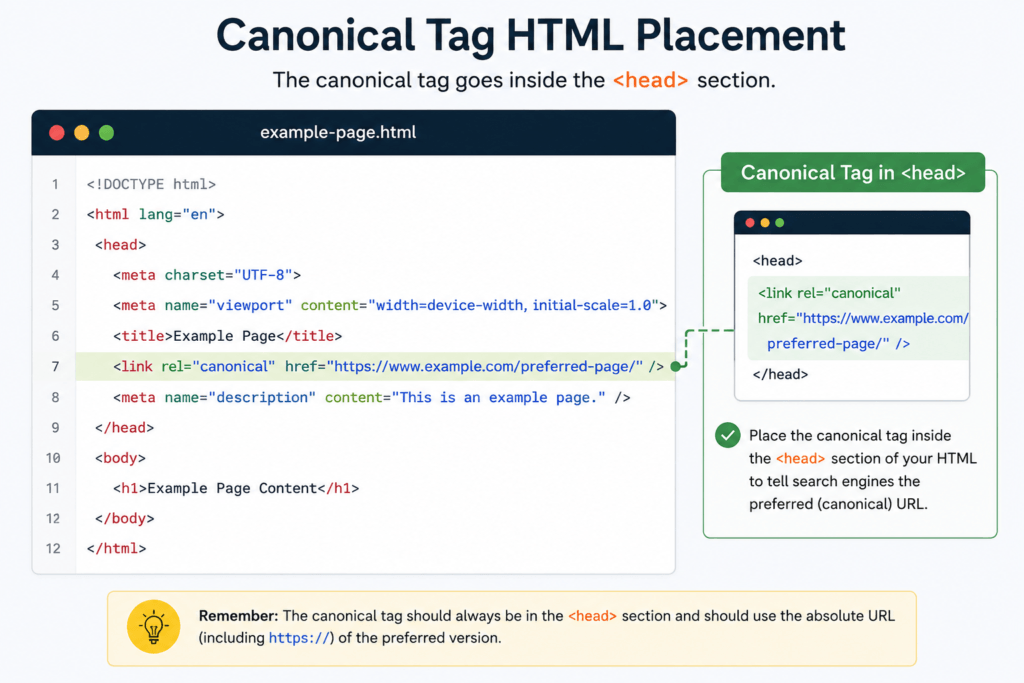
Image concept: A single clean code-editor illustration showing an HTML document with the canonical line highlighted inside <head>.
Filename: canonical-tag-html-example.webp
ALT: Canonical tag HTML example showing rel canonical inside the head section
Caption: The HTML canonical element should reference the preferred URL from the page’s head section.
What Is a Self-Referencing Canonical Tag?
A self-referencing canonical points to the same preferred URL as the page on which the tag appears.
Suppose the page URL is:
https://example.com/seo-guide/Its self-referencing canonical would be:
<link rel="canonical" href="https://example.com/seo-guide/" />This may initially seem unnecessary—why should a page point to itself?
It can help make the preferred URL explicit, particularly when variations of that URL may be created through parameters or other mechanisms.
For example:
https://example.com/seo-guide/?utm_source=facebookmay contain the same underlying content while the preferred URL remains:
https://example.com/seo-guide/Canonical Tag vs 301 Redirect: They Are Not the Same
This distinction is extremely important.
A canonical tag and a 301 redirect can both be involved in URL consolidation, but they perform different jobs.
| Feature | Canonical Tag | 301 Redirect |
|---|---|---|
| Visitor stays on current URL | Yes | No |
| Sends visitor to another URL | No | Yes |
| Indicates preferred version | Yes | Not in the same way |
| Permanent URL move | Usually not its primary purpose | Yes |
| Duplicate/similar pages | Common use | Depends on situation |
| Old URL replaced completely | Usually no | Common use |
For example, if two useful URLs need to remain accessible but contain very similar content, canonicalization may be appropriate.
If an old URL has been permanently replaced and visitors should no longer use it, a 301 redirect may be more appropriate.
You can read our 301 Redirect Generator guide for a detailed explanation of permanent redirects.
Internal link:
Anchor: 301 Redirect Generator guide
URL: /301-redirect-generator-guide/
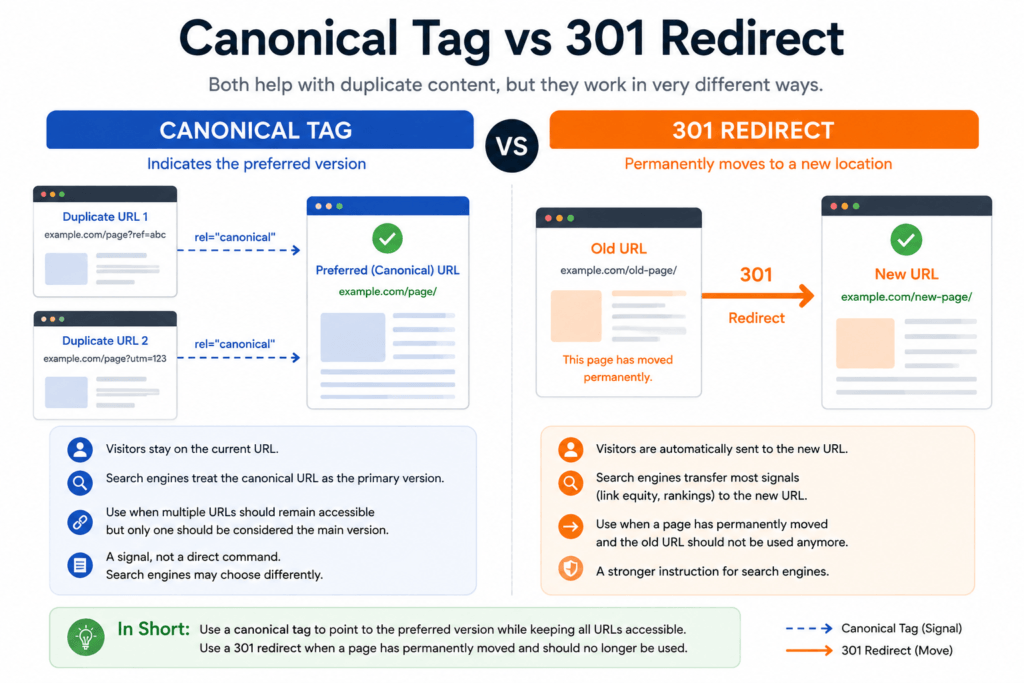
Image concept: One comparison graphic only.
Left side:
Canonical TagPage A remains accessible → Preferred Page
Right side:
301 RedirectOld Page → Visitor automatically moves → New Page
Filename: canonical-tag-vs-301-redirect.webp
ALT: Canonical tag vs 301 redirect comparison for SEO
Caption: Canonical tags identify a preferred URL, while a 301 redirect automatically sends users to a new permanent location.
Canonical Tags Are a Signal, Not an Absolute Command
This is an important concept to understand before using canonical tags across a website.
Declaring a canonical URL tells search engines which version you prefer, but search engines may consider additional signals when determining the canonical URL they ultimately select.
That means canonicalization should be implemented consistently.
If you declare one URL as canonical while your internal links, redirects, sitemap, or other signals strongly favor another version, you can create unnecessary ambiguity.
A clean setup should aim to make your important URL signals agree with each other.
How to Check a Canonical Tag on a Webpage
Creating a canonical tag is only the first step. You should also verify that the page is actually publishing the canonical URL you intended.
A canonical tag checker helps identify the canonical element present on a webpage and shows which URL has been declared as the preferred version.
For example, if you inspect:
https://example.com/product/?color=blueyou may find:
<link rel="canonical" href="https://example.com/product/" />This tells you that the page declares:
https://example.com/product/as its canonical URL.
Checking canonical tags becomes especially important after website migrations, URL structure changes, theme updates, plugin changes, or large-scale SEO work.
What Does a Canonical Tag Checker Do?
A canonical tag checker online typically analyzes a webpage and identifies whether a canonical element exists.
Depending on the tool, it may help you determine:
- Whether a canonical tag is present
- Which URL is declared canonical
- Whether the canonical URL points to itself or another page
- Whether multiple canonical elements may exist
- Whether the canonical URL appears malformed
- Whether the preferred URL matches the URL you expected
A checker is useful for verification, but remember that simply finding a canonical element does not guarantee that a search engine will select that URL as canonical.
The complete canonicalization picture can involve several signals.
How to Check a Canonical Tag Manually
You don’t always need a tool to inspect a canonical tag.
One simple method is to view the page’s HTML source.
Open the webpage and search the source code for:
rel="canonical"You should find something similar to:
<link rel="canonical" href="https://example.com/preferred-page/" />Then verify that the URL inside href is the version you actually want to declare as canonical.
For a large website, however, checking pages individually becomes time-consuming. That’s where automated checking or site-audit workflows become more useful.
Declared Canonical vs Google-Selected Canonical
This is one of the most important concepts in canonical SEO.
There can be a difference between:
User-declared canonical
and
Google-selected canonical
The user-declared canonical is the URL that your website communicates as the preferred version through canonicalization signals such as the canonical element.
The Google-selected canonical is the URL Google ultimately chooses to treat as representative of a set of duplicate or similar pages.
These two URLs can be the same.
Ideally:
User-declared canonical
        ↓
https://example.com/page/
        ↓
Google-selected canonical
        ↓
https://example.com/page/
But sometimes Google may select a different URL.
That does not automatically mean the canonical element is broken. It may mean Google detected other signals suggesting that another URL is a better representative version.
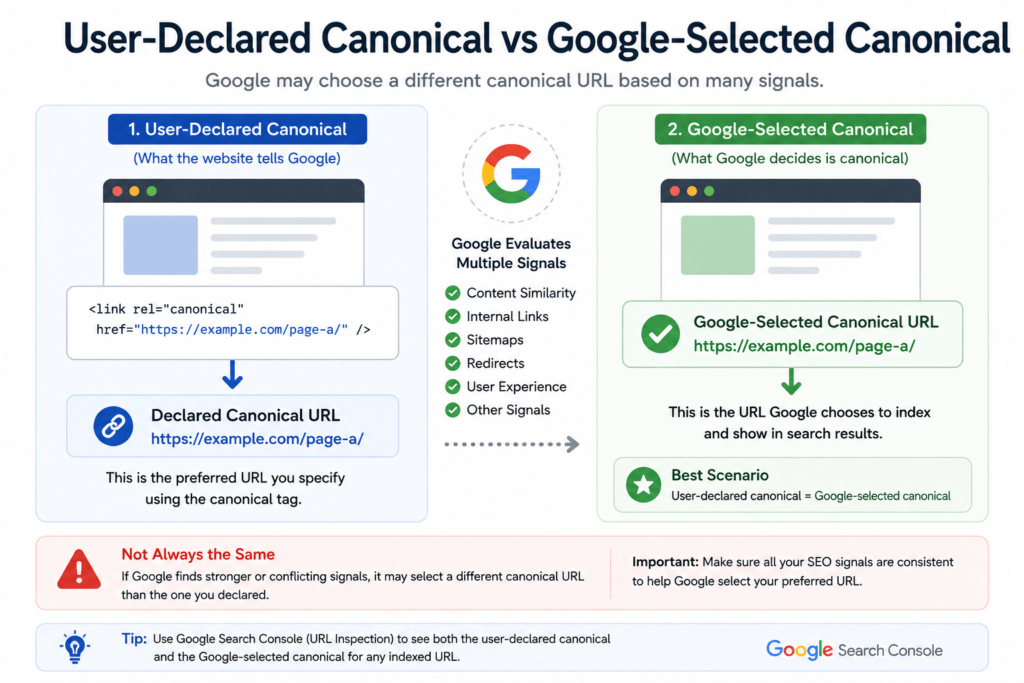
Image concept: One clean diagram titled:
User-Declared Canonical vs Google-Selected Canonical
Left:
Website Owner
↓
Canonical Tag
↓example.com/page-a/
Right:
Google evaluates signals
↓
Canonical selection
↓example.com/page-a/ ✅
At the bottom, show a small warning example:
Conflicting signals → Google may select another URL
Filename: user-declared-vs-google-selected-canonical.webp
ALT: User-declared canonical vs Google-selected canonical URL
Caption: A website can declare its preferred canonical URL, while Google ultimately determines which URL it considers canonical.
How to Check Google’s Selected Canonical URL
For pages on a website you control, Google Search Console is one of the most useful places to investigate canonicalization.
Use URL Inspection for the URL you want to check.
Search Console may provide information including:
User-declared canonical
and
Google-selected canonical
If both point to your intended preferred URL, that’s a good sign.
For example:
User-declared canonical:
https://example.com/seo-guide/

Google-selected canonical:
https://example.com/seo-guide/
If they differ, don’t immediately change the canonical tag.
First investigate why Google may be receiving conflicting signals.
This is important when people search for a Google canonical URL checker. A normal checker can inspect the canonical HTML on a page, but Google’s own canonical selection is a separate concept.
Why Might Google Choose a Different Canonical URL?
Canonicalization is not based on one HTML line alone.
If Google selects a different canonical URL from the one you declared, investigate signals across the site.
Common areas to check include:
Internal Links
Suppose your canonical tag points to:
https://example.com/page/but most internal links point to:
https://example.com/page?version=1That creates inconsistent signals.
Where possible, internal links should point directly to your preferred URL.
XML Sitemap
If you consider:
https://example.com/page/the canonical version, that is normally the version you would want represented as the preferred URL in your sitemap rather than filling the sitemap with duplicate parameter variations.
Redirects
Make sure redirects do not conflict with the canonical URL.
For example, avoid confusing configurations such as:
Page A canonical → Page B
Page B redirects → Page A
Your SEO signals should tell a consistent story.
Duplicate or Similar Content
If several URLs contain substantially similar content, Google may evaluate them together and choose a representative URL.
URL Consistency
Differences involving HTTP/HTTPS, WWW/non-WWW, trailing slashes, parameters, and other URL variations can complicate canonicalization when website signals are inconsistent.
Canonical Tags and URL Parameters
URL parameters are one of the most common reasons websites need canonicalization.
Consider:
https://example.com/laptops/and:
https://example.com/laptops/?sort=priceand:
https://example.com/laptops/?utm_source=emailIf these URLs display essentially the same core content and the clean URL is your preferred version, the parameterized versions may declare:
<link rel="canonical" href="https://example.com/laptops/" />However, you should not automatically canonicalize every parameter URL without understanding what the parameter does.
Some parameters may create genuinely different pages that users and search engines need.
The decision should be based on whether the URLs are actually duplicate or substantially similar and which version you want treated as primary.
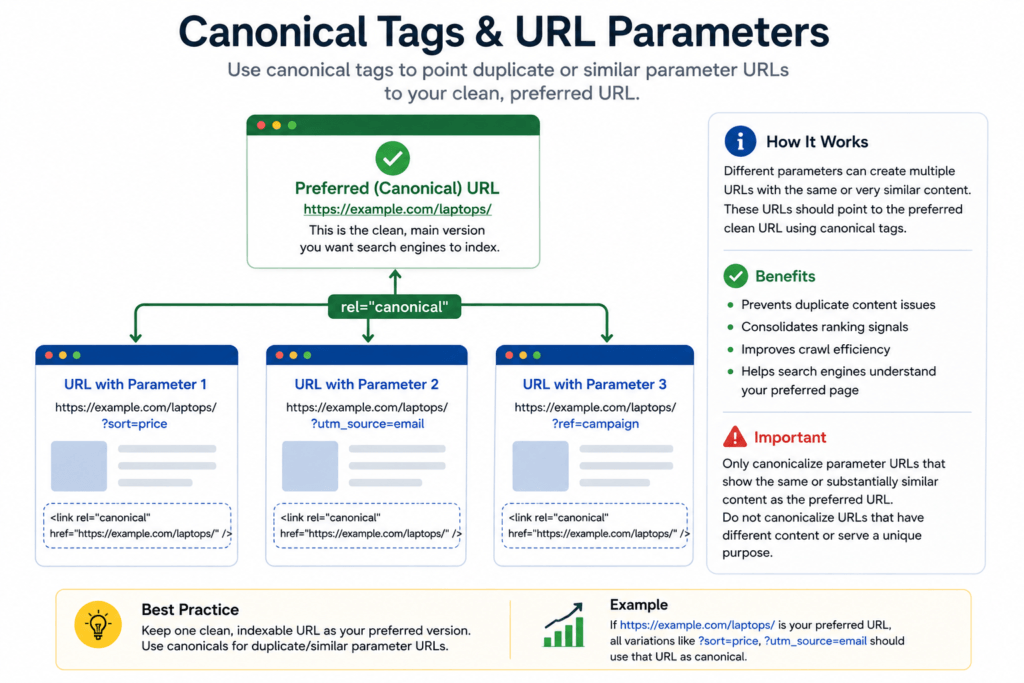
Image concept: A single flow diagram.
Top:
Clean Preferred URL
example.com/laptops/
Below it show three variations:
?sort=price?utm_source=email?ref=campaign
Arrows from the variations point toward the clean preferred URL with:
rel=”canonical”
Filename: canonical-tags-url-parameters.webp
ALT: Canonical tags for URL parameters and duplicate URL variations
Caption: Parameterized URLs that contain duplicate or substantially similar content can reference the clean preferred URL through canonicalization.
HTTP, HTTPS, WWW and Non-WWW Canonical URLs
Canonical URLs should use the version of the website you actually consider preferred.
For example, if your preferred site version is:
https://example.com/you generally don’t want important pages declaring:
http://example.com/or an unintended hostname variation.
The same principle applies to:
https://www.example.com/page/versus:
https://example.com/page/Your redirects, canonical tags, internal links, and sitemap should ideally support the same preferred URL structure.
For a secure website, the canonical URL should normally reference the intended HTTPS version.
Relative vs Absolute Canonical URLs
A canonical can technically be expressed in ways that browsers may resolve, but using a complete absolute URL makes the intended destination explicit.
Instead of:
<link rel="canonical" href="/seo-guide/" />prefer a clearly defined URL such as:
<link rel="canonical" href="https://example.com/seo-guide/" />This makes the protocol, hostname, and path explicit and reduces unnecessary ambiguity during implementation.
Common Canonical Tag Mistakes
Canonical tags are simple HTML elements, but implementation mistakes can create confusing SEO signals.
Here are some of the most important problems to avoid.
1. Canonicalizing Every Page to the Homepage
This is a serious implementation mistake.
For example:
Product A ──┐
Product B ──┼──→ Homepage
Article A ──┤
Article B ──┘
When those pages contain unique content.
A canonical URL should represent the appropriate preferred version of duplicate or substantially similar content—not simply the most authoritative page on the website.
2. Using the Wrong Canonical URL
A typo can cause the page to declare an unintended destination.
Wrong:
<link rel="canonical" href="https://example.com/prodcut/" />Intended:
<link rel="canonical" href="https://example.com/product/" />Always verify generated canonical tags before implementation.
3. Creating Canonical Chains
Avoid unnecessarily creating relationships such as:
Page A → canonical Page B
Page B → canonical Page C
If Page C is truly the preferred version, a cleaner configuration is generally:
Page A ──→ Page C
Page B ──→ Page C
Page C ──→ Page C
This makes the intended canonical destination clearer.
4. Canonicalizing to an Error Page
Your canonical destination should be a valid page that you actually want treated as the preferred version.
Don’t intentionally point canonical elements toward URLs that are broken, unavailable, or otherwise unsuitable as canonical destinations.
5. Conflicting Canonical and Redirect Signals
Suppose:
Page A canonical → Page Bbut:
Page B 301 redirects → Page CNow the signals don’t point cleanly to one preferred destination.
Whenever possible, make canonicalization and redirect behavior consistent.
6. Canonicalizing Unique Pages Together
Two pages should not be consolidated simply because they share a template or discuss a related topic.
For example:
/technical-seo/
/local-seo/
may share design elements and even some terminology, but if they satisfy different search intent and contain distinct content, they are not automatically canonical candidates.
7. Multiple Canonical Tags
A page should not intentionally publish several conflicting canonical declarations.
For example:
<link rel="canonical" href="https://example.com/page-a/" />
<link rel="canonical" href="https://example.com/page-b/" />
creates ambiguity instead of identifying one preferred URL.
If a checker finds multiple canonical elements, investigate the theme, SEO plugin, custom code, or other system responsible for outputting them.
8. Canonical Tag Outside the Head Section
As discussed earlier, canonical HTML should be implemented correctly in the document’s <head>.
A tag that is accidentally injected into the wrong location may not provide the canonicalization signal you intended.
9. Forgetting to Update Canonicals After a Migration
Suppose a website moves from:
https://example.com/old-page/to:
https://example.com/new-page/but the new page still contains:
<link rel="canonical" href="https://example.com/old-page/" />That creates a conflict between the migration and canonical configuration.
After URL migrations, review:
Redirects + Canonicals + Internal Links + Sitemap
together.
Canonical Tag Mistakes at a Glance
| Mistake | Better Approach |
|---|---|
| Every page canonical → homepage | Use the actual preferred equivalent |
| Wrong URL in canonical | Verify the destination |
| HTTP instead of preferred HTTPS | Use preferred secure URL |
| Canonical chains | Point directly to preferred URL |
| Multiple conflicting canonicals | Declare one clear canonical |
| Canonical to broken URL | Use a valid preferred page |
| Unique pages canonicalized together | Keep genuinely unique pages independent |
| Old canonical after migration | Update canonical to current preferred URL |
| Internal links favor another URL | Link directly to preferred version |
| Sitemap contains unwanted variations | Keep preferred indexable URLs consistent |
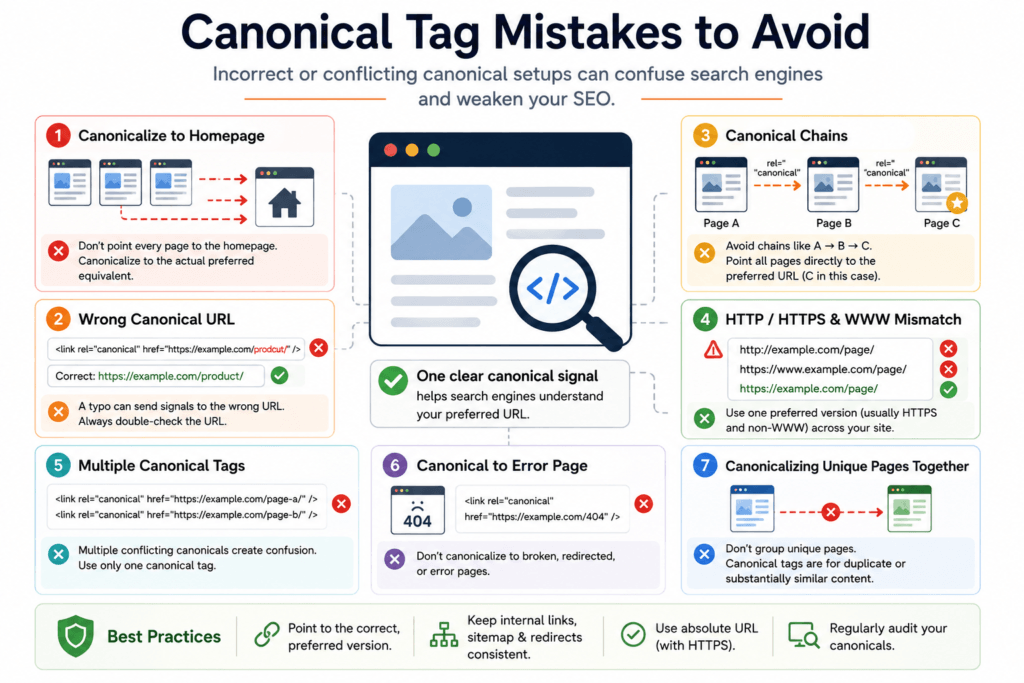
This should be one standalone visual, not several images combined.
Image concept:
Title: Canonical Tag Mistakes to Avoid
Center: one browser/page icon.
Around it, show four warning callouts:
Wrong Canonical URL
Multiple Canonical Tags
Canonical Chain
HTTP/HTTPS Mismatch
Bottom:
Keep canonical signals clear and consistent.
Filename: canonical-tag-mistakes.webp
ALT: Common canonical tag mistakes including wrong URLs and conflicting canonical signals
Caption: Incorrect or conflicting canonical configurations can make it harder for search engines to understand your preferred URL.
Free Canonical Tag Checker vs Canonical Tag Generator
These two tools serve different purposes.
A Canonical Tag Generator helps you create canonical HTML.
A free canonical tag checker tool helps you inspect or verify the canonical configuration of an existing webpage.
Think of it like this:
Generator = Create
Checker = Verify
If you’re building a new canonical tag, start with the generator. If you’re auditing an existing page, use a checker or inspect the source code.
And if you specifically want to know which canonical Google selected for your own indexed URL, Search Console’s URL Inspection data is particularly useful because Google’s selection may differ from the canonical HTML visible on the page.
How to Add a Canonical Tag in WordPress
WordPress websites often generate canonical tags automatically through WordPress itself, themes, or SEO plugins. Before adding a canonical tag manually, first inspect the page source to make sure a canonical element is not already present.
You generally want one clear canonical declaration, not multiple conflicting tags.
For example, if your preferred page is:
https://example.com/seo-guide/the canonical element would be:
<link rel="canonical" href="https://example.com/seo-guide/" />Method 1: Using an SEO Plugin
Many WordPress SEO plugins provide a field for setting a custom canonical URL.
The general workflow is:
Edit Page/Post → SEO Settings → Canonical URL → Enter Preferred URL → Update
This is usually easier than editing theme files manually.
However, don’t enter a different canonical URL simply because another page has higher authority. The destination should represent the appropriate preferred version of duplicate or substantially similar content.
Method 2: WordPress Default Canonical Behavior
Before installing another plugin or adding custom PHP, check whether WordPress or your existing setup is already producing a canonical tag.
Open the published page, view its source, and search for:
rel="canonical"If you find a correct self-referencing canonical such as:
<link rel="canonical" href="https://example.com/page/" />you may not need to add another one.
Adding another canonical through a plugin, theme, or custom code could result in conflicting declarations.
Method 3: Adding Canonical Tags Through Custom Code
Developers can also output canonical tags programmatically.
However, this approach requires care because a site-wide rule can accidentally generate incorrect canonical URLs across hundreds or thousands of pages.
Before implementing custom code, determine:
- Which content types need custom canonicals
- What the preferred URL should be
- Whether another system already generates canonical tags
- How pagination and parameters should behave
- Whether archives require different treatment
For most individual WordPress pages, using the existing SEO configuration is safer than blindly adding another canonical output function.
How to Use a Canonical Tag Generator
Creating the HTML itself is straightforward.
Step 1 — Identify the Preferred URL
Determine which URL should represent the content.
For example:
https://example.com/technical-seo-guide/Step 2 — Enter the URL
Paste the preferred URL into the Canonical Tag Generator.
Step 3 — Generate the HTML
The tool creates markup similar to:
<link rel="canonical" href="https://example.com/technical-seo-guide/" />Step 4 — Copy the Canonical Tag
Copy the generated HTML without modifying the URL accidentally.
Step 5 — Implement It Correctly
Add or configure the canonical through the appropriate system so that it appears correctly in the page’s HTML <head>.
Step 6 — Verify the Published Page
After publishing or updating the page, inspect the live HTML again.
Don’t assume implementation worked just because you saved the setting.
Try the MeetMumtaz Canonical Tag Generator
You can create the required HTML using our free Canonical Tag Generator.
Internal link here:
Anchor text: free Canonical Tag Generator
Destination: /canonical-tag-generator/
Enter your preferred URL, generate the markup, copy it, and verify the final implementation on your webpage.
How to Troubleshoot Canonical Tag Problems
If your canonical configuration isn’t behaving as expected, don’t immediately remove the tag.
Work through the problem systematically.
Check the Live HTML
First verify what the webpage is actually outputting.
Search the source for:
canonicalConfirm that:
One intended canonical exists → URL is correct → protocol is correct → hostname is correct → destination is valid
Check for Multiple Canonical Tags
Themes, SEO plugins, custom functions, and third-party extensions can sometimes produce overlapping metadata.
If you see:
<link rel="canonical" href="https://example.com/page-a/" />
<link rel="canonical" href="https://example.com/page-b/" />
find which systems are producing them instead of simply adding a third canonical.
Check the Canonical Destination
Open the destination URL itself.
Make sure it isn’t:
- A 404 page
- An accidental redirect
- Blocked unexpectedly
- A completely unrelated page
- An obsolete URL
The destination should be the page you genuinely want treated as the preferred version.
Your internal linking structure should support your preferred URLs.
Check Internal Links
If the canonical is:
https://example.com/category/product/but the website repeatedly links to:
https://example.com/category/product/?ref=menuconsider whether those internal links can point directly to the clean preferred version.
This reduces unnecessary URL variations and creates more consistent signals.
Check the XML Sitemap
Your sitemap should focus on the URLs you actually want search engines to discover and consider for indexing.
If your preferred URL is:
https://example.com/page/you generally don’t need multiple tracking or duplicate variations of that page listed as separate sitemap entries.
Canonical Tags and XML Sitemaps Work Together
A canonical tag and an XML sitemap serve different purposes.
A canonical tells search engines:
“This is my preferred version of this content.”
A sitemap helps communicate:
“These are important URLs on my website that I want search engines to discover.”
Ideally, those signals should agree.
For example:
Canonical URL
      ↓
https://example.com/page/
      ↓
Internal Links
      ↓
https://example.com/page/
      ↓
XML Sitemap
      ↓
https://example.com/page/
Consistency makes your preferred URL easier to understand.
Canonical Tags and Internal Linking
Internal links are often overlooked during canonical audits.
Imagine you have:
https://example.com/seo-guide/and:
https://example.com/seo-guide/?source=homepageIf the first is your preferred version, linking internally to the clean URL wherever practical keeps your site architecture cleaner.
This is especially important on navigation menus, category pages, related-post sections, breadcrumbs, and contextual links.
When Should You NOT Use a Canonical Tag?
Canonical tags are useful, but they aren’t the solution to every URL problem.
Don’t treat a canonical tag as a replacement for:
301 redirects when a page has permanently moved.
Don’t use canonicalization simply to hide:
404 pages, broken pages, or poor-quality URLs.
And don’t canonicalize genuinely different pages together merely because they target related keywords.
A canonical should primarily help communicate the preferred version among duplicate or substantially similar URLs.
Canonical Tag SEO Checklist
Before considering the implementation complete, run through this checklist:
| Check | Recommended State |
|---|---|
| Canonical tag exists | ✅ Yes, where appropriate |
| Preferred URL correct | ✅ Yes |
| Absolute URL used | ✅ Recommended |
| HTTPS version used | ✅ If HTTPS is preferred |
| Correct hostname | ✅ Yes |
| Canonical destination works | ✅ Yes |
| Multiple conflicting tags | ❌ No |
| Canonical chain | ❌ Avoid |
| Canonical points to 404 | ❌ No |
| Internal links support preferred URL | ✅ Yes |
| Sitemap supports preferred URL | ✅ Yes |
| Unique pages incorrectly canonicalized | ❌ No |
| Google-selected canonical checked | ✅ When troubleshooting |
Frequently Asked Questions About Canonical Tags
What is a Canonical Tag Generator?
A Canonical Tag Generator is a tool that creates the HTML canonical element for a preferred webpage URL. You enter the URL you want to declare as canonical, and the tool generates the corresponding rel="canonical" markup.
Is the MeetMumtaz Canonical Tag Generator free?
Yes. The MeetMumtaz Canonical Tag Generator is free to use. You can generate canonical HTML without a paid subscription.
What is a canonical tag checker?
A canonical tag checker examines a webpage to identify the canonical URL declared in its HTML. It can help verify whether a page contains the expected canonical element.
How can I check a canonical tag online?
You can use a canonical checking tool or inspect the page’s HTML source and search for rel="canonical". For pages you control, Google Search Console can also provide canonical information through URL Inspection.
What is a Google-selected canonical?
The Google-selected canonical is the URL Google chooses as the representative version among duplicate or similar pages. It may match the user-declared canonical, but Google can select another URL when its systems interpret the signals differently.
Does Google always follow the canonical tag?
Not necessarily. A canonical declaration is a signal rather than an absolute command. Search engines can consider other signals when determining which URL should be canonical.
Should every page have a self-referencing canonical?
Self-referencing canonicals are commonly used to make the preferred URL explicit. The appropriate implementation still depends on the website and page type.
Can I use a canonical tag instead of a 301 redirect?
Not when your actual goal is to permanently move visitors from an obsolete URL to a replacement URL. A canonical identifies a preferred version while the current page can remain accessible; a 301 redirect sends visitors to another URL.
Can a canonical tag point to another domain?
Cross-domain canonicalization can be used in appropriate duplicate-content scenarios, but it should be implemented deliberately because you’re indicating that another URL is the preferred version of the content.
Can I have two canonical tags on one page?
You should avoid multiple conflicting canonical declarations. A page should communicate one clear preferred canonical URL.
Should canonical URLs appear in the XML sitemap?
For URLs you want indexed, keeping your sitemap focused on preferred canonical versions provides a clearer and more consistent signal than submitting duplicate URL variations.
Final Thoughts
Canonicalization looks simple because the HTML consists of only a short line:
<link rel="canonical" href="https://example.com/preferred-page/" />But effective canonical SEO goes beyond generating that line.
Your canonical tags, internal links, redirects, preferred HTTPS/hostname structure, and XML sitemap should work together to communicate a consistent preferred URL.
Before implementing a canonical, ask one question:
“Which URL should represent this content in search?”
Once you’ve identified that URL, create the correct markup, implement it carefully, and verify the live page.
Create Your Canonical Tag
Need the HTML without writing it manually?
Use the MeetMumtaz Canonical Tag Generator to enter your preferred URL and instantly create the canonical markup you need.
CTA internal link:
Anchor: Create a Canonical Tag
Destination: /canonical-tag-generator/