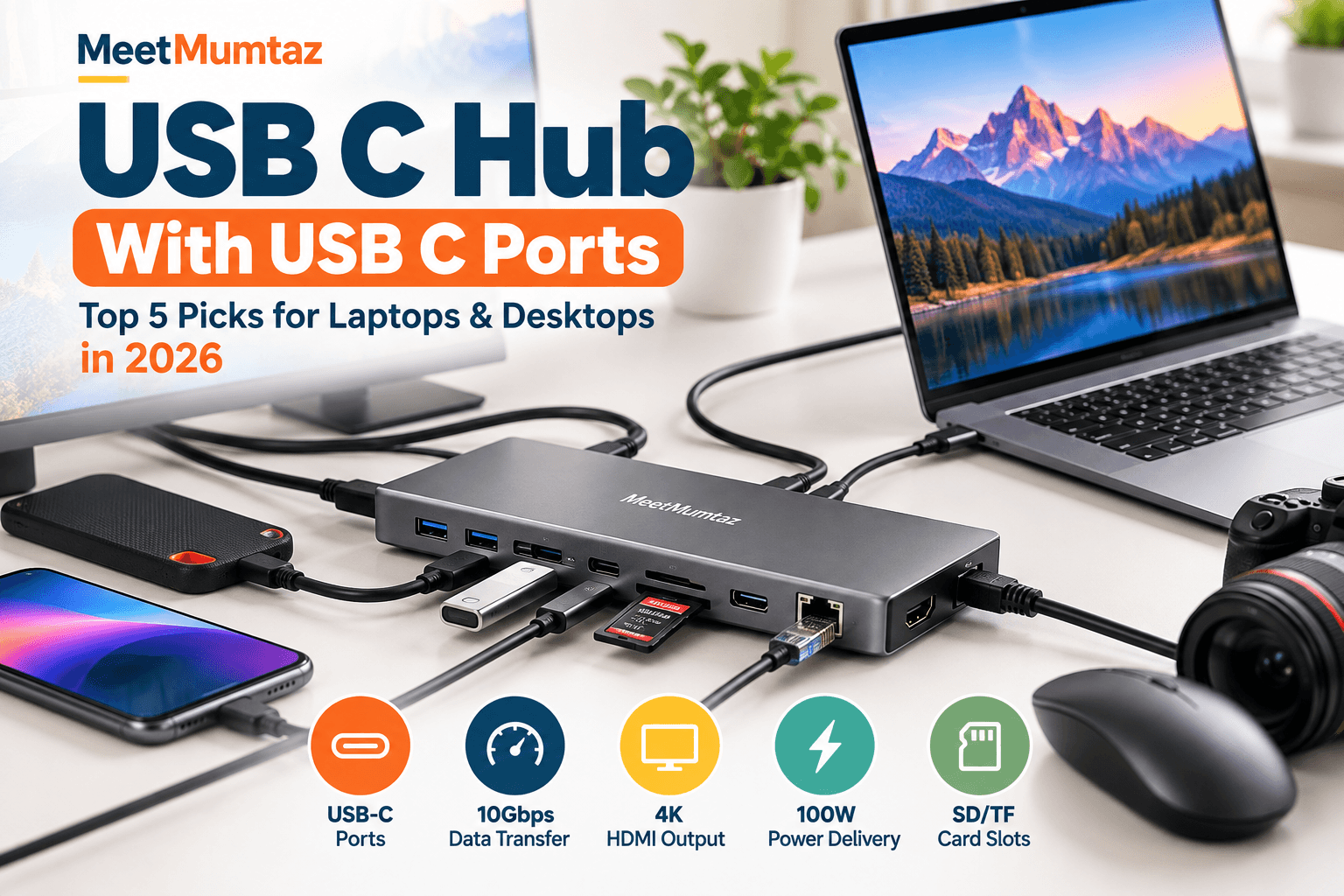
Modern laptops are becoming thinner, but that often means fewer connection ports. If you regularly connect external SSDs, keyboards, monitors, memory cards, and other accessories, a USB C hub with USB C ports can make your workspace more practical.
However, not every USB-C hub offers the same functionality. Some focus on high-speed data transfers, while others provide HDMI output, Ethernet connectivity, laptop charging, or even built-in SSD expansion.
In this guide, we’ll compare five USB-C hubs, explain their advertised features, examine their advantages and limitations, and help you understand what to check before purchasing.
Affiliate Disclosure: This article contains Amazon affiliate links. If you purchase through these links, MeetMumtaz may earn a commission at no additional cost to you.
Quick Comparison: 5 USB-C Hubs
Comparison based on the product names and advertised specifications supplied. Exact port counts by type, compatibility, and charging behavior should be checked on the current Amazon listings before purchase.
1. Powered USB Hub 15-in-1 — For Multiple Accessories
Multi-device setup
A 15-in-1 powered USB hub is worth considering when you have several accessories competing for the limited ports on your computer.
This model is advertised with USB 3.2 connectivity, speeds up to 10Gbps, and 100W Power Delivery. Its main appeal is combining extensive connectivity with a charging-related feature in one device.
For a desktop workstation or a laptop connected to numerous accessories, this type of hub can reduce the need to constantly unplug devices.
Product specifications, features, pros and cons
| Category | Details |
|---|---|
| Key Features |
• 15-in-1 connectivity design • Advertised USB 3.2 support • Advertised data speeds up to 10Gbps • 100W Power Delivery feature • Powered hub configuration |
| ✓ Pros |
• Numerous connections in one hub • Useful for peripheral-heavy workstations • High advertised data-transfer capability • Power Delivery support |
| ✕ Cons |
• Larger connectivity setup may require more desk space • Actual speeds depend on the host and connected devices • Individual USB-C data-port count needs verification • PD wattage does not necessarily equal laptop charging wattage |
| Check Price on Amazon → | |
2. Acer 8-in-1 USB-C Hub — For Laptop and External Monitor Connections
Laptop workstation
The Acer 8-in-1 USB-C Hub combines advertised 10Gbps connectivity with HDMI output supporting up to 4K at 60Hz.
This combination makes it relevant for laptop owners who want to connect a compatible external display while keeping other accessories attached.
The advertised HDMI capability is particularly useful to investigate if you’re setting up a larger workspace with an external monitor. Remember that actual 4K@60Hz output also depends on your laptop’s USB-C video capabilities, display, cable, and adapter configuration.
Product specifications, features, pros and cons
| Category | Details |
|---|---|
| Key Features |
• 8-in-1 USB-C hub design • Advertised 10Gbps connectivity • HDMI output advertised up to 4K@60Hz • USB-C adapter for compatible laptops and Macs • Multiple connections through one adapter |
| ✓ Pros |
• Combines peripheral connectivity with HDMI • Relevant for laptop desk setups • Supports high-resolution display output on compatible systems • Consolidates connections into one adapter |
| ✕ Cons |
• HDMI performance depends on host compatibility • Exact number of USB-C data ports needs confirmation • Charging capability is not established by the supplied title • Not every USB-C laptop supports video output |
| Check Price on Amazon → | |
For readers planning a larger display arrangement, our universal laptop docking station guide explains additional docking options for multi-monitor setups.
3. UGREEN Revodok Pro 6-in-1 USB-C Hub — For a Compact Workspace
Compact connectivity
The UGREEN Revodok Pro 6-in-1 is another option for people who want more connections without choosing a larger multiport dock.
Its advertised specifications include 10Gbps connectivity and HDMI output up to 4K at 60Hz.
A six-in-one design can suit a relatively simple workstation where the main requirements are a compatible monitor and a limited collection of USB accessories.
Before purchasing, check the exact configuration of USB-A ports, USB-C data ports, and any charging-only port. Those distinctions matter when the priority is specifically a USB hub with USB C connectivity.
Product specifications, features, pros and cons
| Category | Details |
|---|---|
| Key Features |
• UGREEN Revodok Pro series • 6-in-1 USB-C connectivity • Advertised 10Gbps data capability • HDMI output advertised up to 4K@60Hz • Designed for multiport laptop connectivity |
| ✓ Pros |
• Fewer connections to manage than a large dock • HDMI and high-speed connectivity in one device • Relevant for compact laptop setups • May reduce repeated cable switching |
| ✕ Cons |
• Six-in-one configuration offers fewer total functions than larger hubs • USB-C data-port count must be checked • Display output requires compatible hardware • Charging support is not confirmed from the supplied product name |
| Check Price on Amazon → | |
4. 11-in-1 USB-C Docking Station With M.2 SSD Enclosure — For Storage Expansion
Storage and connectivity
This 11-in-1 docking station stands out because it advertises an integrated M.2 NVMe/SATA SSD enclosure alongside conventional hub functions.
According to the supplied description, it includes 10Gbps USB-C/A data connectivity, 4K HDMI, 100W PD, two USB 3.0 data ports, Gigabit Ethernet, and microSD/TF support.
For users who work with large files, photographs, video assets, or frequent backups, combining a docking station with an SSD enclosure may reduce the number of separate accessories on the desk.
However, an SSD enclosure does not necessarily include the SSD itself. Buyers should verify whether a drive is included and which M.2 sizes, interfaces, and capacities are supported.
Product specifications, features, pros and cons
| Category | Details |
|---|---|
| Key Features |
• 11-in-1 docking station • Advertised M.2 NVMe/SATA SSD enclosure • 10Gbps USB-C/A data connections • 4K HDMI output • Advertised 100W Power Delivery • Two USB 3.0 data ports • 1000Mbps Ethernet • MicroSD and TF card support |
| ✓ Pros |
• Combines storage expansion and peripheral connections • Includes wired-network connectivity • Offers USB-C/A data connectivity • Includes a Power Delivery feature • Useful for consolidated desk setups |
| ✕ Cons |
• SSD inclusion and compatibility require confirmation • Shared hub bandwidth can affect simultaneous transfers • Actual charging output depends on the power arrangement • HDMI refresh rate is not established by the supplied description |
| Check Price on Amazon → | |
If you need portable storage rather than an integrated enclosure, see our external solid state drive 2TB comparison.
5. Powered 10-Port USB 3.2 / USB-C Hub — For Desktop Peripherals
Multiple USB devices
A powered 10-port hub is relevant for a desk where multiple USB peripherals need to remain connected.
The supplied product name advertises 10Gbps USB 3.2 connectivity, USB-C support, and SD/TF card slots.
This type of hub may be useful for managing storage devices, card readers, input accessories, and other compatible peripherals. The key purchasing consideration is whether the individual ports offer the connector types and power characteristics your devices require.
Product specifications, features, pros and cons
| Category | Details |
|---|---|
| Key Features |
• 10-port powered USB hub • Advertised USB 3.2 connectivity • USB-C support • Advertised data speeds up to 10Gbps • SD and TF memory-card slots • Multiple peripheral connections |
| ✓ Pros |
• Numerous ports for desktop accessories • Powered configuration • Memory-card connectivity • High advertised USB transfer capability • May reduce frequent cable changes |
| ✕ Cons |
• Exact USB-A versus USB-C port allocation needs confirmation • Display output is not established by the product title • Laptop Power Delivery is not confirmed • Simultaneous transfers may share upstream bandwidth |
| Check Price on Amazon → | |
What Is a USB C Hub With USB C Ports?
A USB-C hub is an accessory that connects to a compatible computer and provides additional connections for other devices.
Unlike a simple adapter with a single output, a multiport hub may combine several types of connectivity, including USB-A, USB-C, HDMI, Ethernet, and memory-card readers.
The key distinction is that USB-C describes the physical connector, not a guaranteed transfer speed or feature set.
For example, two ports with the same USB-C shape may support different capabilities:
- USB-C data transfer
- USB-C Power Delivery input
- Video output through a supported alternate mode
- A combination of those functions
This is why buyers should inspect the individual port specifications rather than relying on the total number of advertised functions.
For technical background, consult the
USB Implementers Forum for information about USB technologies and specifications.
USB C Hub With Power Delivery: How Does It Work?
A USB C hub with power delivery can provide a convenient way to connect peripherals while supplying charging power to a compatible laptop.
In a typical pass-through charging arrangement, a USB-C charger connects to the hub’s PD input, and the hub passes supported power through its host connection to the laptop.
However, there are three important considerations.
First, 100W PD does not automatically mean 100W reaches the laptop. The charger, cable, hub’s own power requirements, and host-device compatibility all matter.
Second, a PD input is not automatically a data port. Some USB-C ports are dedicated to charging.
Third, a powered USB hub is not necessarily a laptop charger. An external power adapter may power attached peripherals without offering laptop Power Delivery.
Before buying, check the product’s charging specifications and your laptop manufacturer’s requirements.
USB Type C USB Hub vs. Traditional USB Hub
| Feature | USB-C hub | Traditional USB-A hub |
|---|---|---|
| Typical host connector | USB-C | USB-A |
| USB-C peripheral ports | Model-dependent | Model-dependent |
| HDMI connectivity | Available on selected models | Requires specific supported hardware |
| Laptop PD pass-through | Available on selected models | Not a typical USB-A hub feature |
| Data speed | Depends on USB specification | Depends on USB specification |
| Best consideration | Host compatibility and required functions | USB-A peripheral expansion |
A USB Type C USB hub is not inherently faster simply because it uses a USB-C connector. Speed depends on the actual USB standard supported by the host, hub, cables, and devices.
How to Choose a USB C Hub With USB C Ports
Check the number of actual USB-C data ports
A product advertised as a USB-C hub might have only one USB-C host cable and one dedicated USB-C charging input.
If you need to connect multiple USB-C SSDs or accessories, verify how many downstream USB-C ports support data transfer.
Understand 10Gbps USB performance
An advertised 10Gbps connection describes a maximum signaling capability under supported conditions, not a guaranteed file-copy speed.
Real-world performance can be affected by storage-device speed, protocol overhead, cables, host support, and multiple devices sharing bandwidth.
Check HDMI compatibility
For an external monitor, verify the supported resolution and refresh rate.
A hub advertising 4K@60Hz also requires a compatible computer and display connection. Not every USB-C port on a laptop supports video output.
For a portable second-screen setup, see our 13 inch portable monitor guide.
Confirm the power requirements
For a powered hub, check whether the required power supply is included.
For PD charging, confirm the charger wattage, supported laptop requirements, and the actual pass-through power available.
Match the hub to your workspace
A small six-port hub can be convenient for a limited set of accessories, while a larger powered hub can support a workstation with numerous connected devices.
If storage expansion is a priority, a docking station with an M.2 enclosure may offer additional functionality, provided its SSD compatibility meets your requirements.
Common Mistakes When Buying a USB-C Hub
One common mistake is assuming every USB-C-shaped port supports data, charging, and video simultaneously.
Another is buying a hub based solely on the advertised total number of ports without examining the actual breakdown.
It is also easy to overlook host compatibility. A hub may advertise high-speed transfers or 4K display output, but your laptop must support the necessary features.
Finally, remember that adding ports does not create unlimited bandwidth. Multiple connected devices can share the capacity of the hub’s upstream connection.
Frequently Asked Questions
Can a USB C hub have multiple USB C ports?
Yes. Some hubs include multiple downstream USB-C ports for compatible peripherals. However, other models use USB-C only for the host connection or Power Delivery input, so the port configuration must be checked.
Is a USB C hub with power delivery necessary?
Not always. Power Delivery can be useful when you want compatible laptop charging through a hub, but a simple data-only hub may be sufficient if your computer has a separate charging connection.
Can a USB-C hub support 10Gbps transfers?
Yes, when the hub and the complete connection support the relevant USB data specification. Actual file-transfer speeds can be lower.
Can I connect two external SSDs to a USB-C hub?
Potentially, yes, if the hub provides enough compatible data ports and sufficient power. Simultaneous transfer performance depends on the hub’s upstream bandwidth and connected devices.
Does a USB-C hub work with MacBooks?
Many USB-C hubs work with compatible MacBooks, but port functionality and display support vary by Mac model and hub. Check the manufacturer’s compatibility details.
Can I connect an HDMI monitor through a USB-C hub?
Yes, with a compatible hub and host computer that support the required video-output functionality. An HDMI connector on the hub alone does not guarantee compatibility with every laptop.
Final Thoughts
Choosing a USB C hub with USB C ports starts with identifying which connections you actually need.
The five products covered here represent different configurations: high-port-count powered hubs, compact HDMI adapters, and a docking station that also offers an M.2 storage enclosure.
Rather than selecting a device based only on its advertised port count, compare its USB-C data capabilities, power requirements, display support, and compatibility with your computer.
Checking those details before purchasing can help you avoid an adapter that looks suitable on paper but lacks a connection you need.