
When a website suddenly stops loading, email delivery fails, or a domain starts pointing to the wrong server, the problem is often somewhere in the DNS configuration.
A DNS lookup helps you find the DNS records associated with a domain and understand where its website, email, and other services are being directed.
Whether you’re troubleshooting a website, verifying a domain configuration, checking a CNAME record, or simply trying to understand how DNS works, knowing how to perform a DNS lookup can save a lot of time.
In this guide, you’ll learn how DNS lookup works, which records you should check, how to use the nslookup command, and how to troubleshoot common DNS problems.
What Is a DNS Lookup?
DNS stands for Domain Name System.
Think of DNS as the internet’s address directory. Humans prefer domain names such as:
example.com
But computers communicate using IP addresses.
When you enter a domain into your browser, DNS helps determine which server the domain should connect to.
A DNS lookup is the process of requesting DNS information for a domain.
Depending on the type of lookup, you can retrieve records such as:
- A
- AAAA
- CNAME
- MX
- TXT
- NS
- SOA
Each record serves a different purpose.
How Does DNS Lookup Work?
When you visit a website, your device usually doesn’t immediately contact the website’s server.
First, it needs to determine the domain’s IP address.
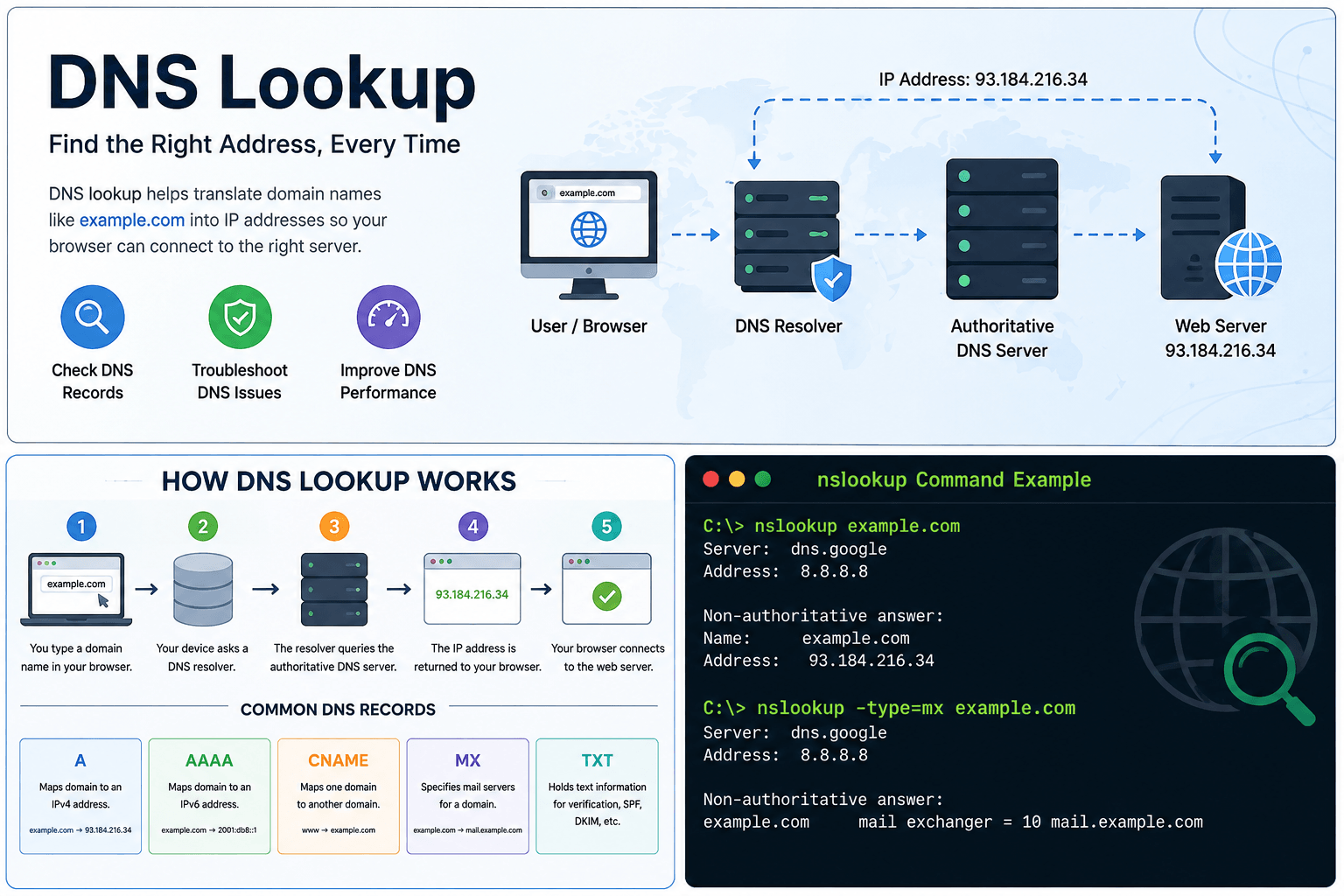
A simplified DNS lookup works like this:
- You enter a domain name in your browser.
- Your device checks whether it already has the DNS information cached.
- If not, a DNS resolver searches for the required DNS record.
- The resolver identifies the authoritative DNS server for the domain.
- The appropriate DNS record is returned.
- Your browser connects to the destination server.
Most of this happens within milliseconds.
However, incorrect DNS records, slow DNS resolvers, propagation delays, or caching problems can sometimes make the process slower or cause a website to become unreachable.
Common DNS Record Types
Understanding the most common DNS records makes DNS troubleshooting much easier.
A Record
An A record connects a domain or hostname to an IPv4 address.
Example:
example.com → 192.0.2.10
If you’ve recently moved your website to another hosting provider, checking the A record can confirm whether the domain is pointing to the correct server.
AAAA Record
An AAAA record performs a similar function but points to an IPv6 address.
IPv6 addresses are longer than traditional IPv4 addresses and are increasingly used across modern networks.
CNAME Record
A CNAME record points one hostname to another hostname rather than directly to an IP address.
For example:
www.example.com → example.com
A CNAME checker can help verify whether a subdomain is correctly pointing to its intended destination.
CNAME records are commonly used for:
- CDN configurations
- SaaS platforms
- verification services
- subdomains
- third-party applications
MX Record
MX stands for Mail Exchange.
MX records specify which mail servers should receive email for a domain.
If your website works but domain email doesn’t, checking MX records should be one of your first troubleshooting steps.
TXT Record
TXT records contain text-based information associated with a domain.
They’re commonly used for:
- SPF
- DKIM
- DMARC
- domain ownership verification
- security policies
- third-party service verification
If you’re troubleshooting email authentication, TXT records are especially important.
NS Record
NS stands for Name Server.
NS records identify the authoritative nameservers responsible for managing a domain’s DNS records.
If nameservers are incorrect, other DNS records may appear perfectly configured in your hosting panel while visitors still receive outdated or incorrect DNS information.
SOA Record
SOA stands for Start of Authority.
The SOA record contains administrative information about a DNS zone, including details related to DNS updates and refresh intervals.
It’s generally more useful for administrators and advanced troubleshooting than everyday DNS checks.
How to Perform a DNS Lookup
There are several ways to check DNS records.
The easiest method for most users is an online DNS lookup tool.
Enter the domain or hostname, select the DNS record you want to inspect, and run the lookup.
This is particularly useful if you don’t want to use command-line utilities.
For more technical troubleshooting, you can use tools such as nslookup.
How to Use the nslookup Command
The nslookup command is available on many operating systems and allows you to query DNS information directly from the command line.
A basic lookup looks like:
nslookup example.com
The result normally includes the DNS server used for the query and the IP address associated with the domain.
Check MX Records With nslookup
You can query mail records using:
nslookup -type=mx example.com
This can help when diagnosing email delivery or mail-server configuration problems.
Check NS Records With nslookup
Use:
nslookup -type=ns example.com
This shows the nameservers associated with the domain.
Check TXT Records With nslookup
Use:
nslookup -type=txt example.com
TXT lookups are useful when verifying SPF and other domain authentication records.
The exact behavior of nslookup can vary slightly between operating systems, but these commands cover many common DNS troubleshooting tasks.
How to Check a CNAME Record
If you’re configuring a subdomain for a third-party platform, verifying the CNAME record is often essential.
A CNAME checker should tell you which hostname the queried domain or subdomain points to.
For example:
shop.example.com → stores.example-platform.com
If the returned destination doesn’t match the value provided by your service provider, the CNAME configuration may be incorrect.
Also remember that DNS changes aren’t always visible immediately.
Caching and DNS propagation can delay updates.
Why Is My DNS Lookup Slow?
A slow DNS lookup doesn’t necessarily mean your website server is slow.
The delay can happen before the browser even establishes a connection with your website.
Common causes include:
- slow DNS resolvers
- incorrect DNS configuration
- excessive DNS lookups
- DNS server latency
- network problems
- outdated cached DNS records
- overloaded DNS infrastructure
How to Fix Slow DNS Lookup
If you’re searching for how to fix slow DNS lookup, start with the simplest checks before changing your website configuration.
1. Test Another DNS Resolver
Your internet provider’s DNS resolver may occasionally be slow.
Testing another reputable DNS resolver can help determine whether the delay originates from your current resolver.
2. Clear Your Local DNS Cache
Your computer may be using outdated DNS information.
Clearing the local DNS cache forces the system to request fresh DNS information.
The command varies by operating system, so use the appropriate method for your device.
3. Check Your DNS Records
Incorrect, duplicated, or unnecessary DNS records can make troubleshooting difficult.
Review important records such as:
- A
- AAAA
- CNAME
- MX
- NS
Make sure they point to the expected destinations.
4. Check Your Nameservers
Verify that your domain uses the nameservers provided by your current DNS provider.
This is particularly important after:
- changing hosting companies
- migrating a website
- moving DNS providers
- enabling a CDN
5. Consider DNS Propagation
After changing DNS records, different resolvers may temporarily return different results because cached records haven’t expired yet.
This is normal.
DNS Lookup vs DNS Propagation Check
Avoid repeatedly changing DNS records while propagation is still taking place, as doing so can make troubleshooting more confusing.
These two concepts are related but aren’t exactly the same.
A DNS lookup asks a DNS server for a particular record.
A DNS propagation check compares DNS results from multiple locations or resolvers to determine whether a recent change has become widely visible.
For example, after changing your website’s IP address, one resolver may return the new IP while another temporarily returns the previous IP.
That usually indicates caching or propagation rather than a problem with the website itself.
Online DNS Lookup Tools vs nslookup
Both approaches are useful.
An online DNS lookup tool is convenient when you want a quick result without opening a terminal.
The nslookup command is useful when you want to query DNS directly from your computer or test a particular DNS server.
Other online DNS utilities, including services such as ViewDNS and dns-finder.com, may also provide different DNS diagnostic features.
For everyday troubleshooting, the best tool is usually whichever gives you the specific DNS record and information you need without unnecessary complexity.
Common DNS Lookup Problems
DNS Record Returns the Wrong IP
Check your A and AAAA records.
If you recently migrated your website, an old record may still point to the previous hosting server.
www Version Doesn’t Work
Check the DNS record for:
www.example.com
Depending on your setup, it may use an A record or CNAME.
Domain Email Isn’t Working
Check:
- MX records
- SPF
- DKIM
- DMARC
- relevant TXT records
Don’t change mail-related DNS records unless you understand which email provider currently handles your domain.
DNS Record Was Changed but Still Shows the Old Value
This is often caused by caching.
Check the record using multiple resolvers and allow the previous record’s TTL to expire before assuming the update failed.
Subdomain Isn’t Connecting to a Service
Check the subdomain’s A or CNAME record.
Compare the returned value with the exact DNS configuration supplied by the service you’re trying to connect.
DNS Lookup Best Practices
DNS changes can affect websites, email, verification systems, and other services, so make changes carefully.
Before modifying important DNS records:
- Record the existing values.
- Confirm which provider manages your DNS.
- Double-check hostnames and IP addresses.
- Avoid deleting unfamiliar records.
- Verify mail records before changing them.
- Allow time for caching and propagation.
- Test the domain again after making changes.
A simple screenshot or copy of your existing DNS zone can save considerable time if you need to restore a previous configuration.
Frequently Asked Questions
What does DNS lookup mean?
A DNS lookup is a request for DNS information associated with a domain or hostname. It can return information such as IP addresses, mail servers, nameservers, aliases, and TXT records.
How do I check the DNS of a domain?
You can use an online DNS lookup tool or a command-line utility such as nslookup. Select or request the record type you want to inspect, such as A, MX, CNAME, TXT, or NS.
What is the nslookup command used for?
The nslookup command queries DNS servers for information about domains and hostnames. It can be used to inspect IP addresses, nameservers, mail servers, TXT records, and other DNS data.
What is a CNAME checker?
A CNAME checker verifies whether a hostname has a CNAME record and shows the hostname it points to. It’s particularly useful when configuring subdomains for external services.
Why is DNS lookup taking so long?
Slow DNS lookups can be caused by resolver latency, network problems, DNS server performance, caching issues, or configuration problems. Testing another resolver can help identify whether the DNS resolver is responsible.
How long do DNS changes take?
There isn’t one fixed propagation time. How quickly a change becomes visible depends heavily on DNS caching and the TTL of the previous record. Some resolvers may show the new record before others.
Can DNS problems make a website slow?
Yes. DNS resolution happens before the browser can connect to the website server. A slow DNS lookup can therefore increase the time visitors wait before the website begins loading.
Final Thoughts
A DNS lookup is one of the simplest ways to investigate domain, website, and email configuration problems.
Start by identifying the record you actually need to inspect. Check A or AAAA records for website destinations, CNAME records for aliases and third-party services, MX records for email routing, TXT records for verification and email authentication, and NS records for authoritative nameservers.
For quick checks, an online DNS lookup tool is convenient. For command-line troubleshooting, the nslookup command gives you direct access to DNS queries.
Most importantly, don’t change DNS records simply because something looks unfamiliar. Verify what each record does first, keep a copy of the existing configuration, and make one change at a time.