A laptop is convenient when you are working on the move, but a permanent desk setup can quickly become cluttered with monitor cables, USB accessories, Ethernet adapters, chargers, and other peripherals.
A universal laptop docking station can simplify that setup by connecting multiple devices through a single dock. Depending on the model and laptop, a docking station can add dual or multiple monitor support, USB ports, wired Ethernet, audio connections, charging, and other useful ports.
The difficult part is choosing the right dock. Some are designed primarily for basic dual-monitor office setups, while others target demanding multi-display workstations.
In this guide, we compare five docking stations from WAVLINK, Plugable, and Acer for different workstation requirements.
Affiliate Disclosure: This article contains affiliate links. If you purchase through one of these links, MeetMumtaz may earn a commission at no additional cost to you.
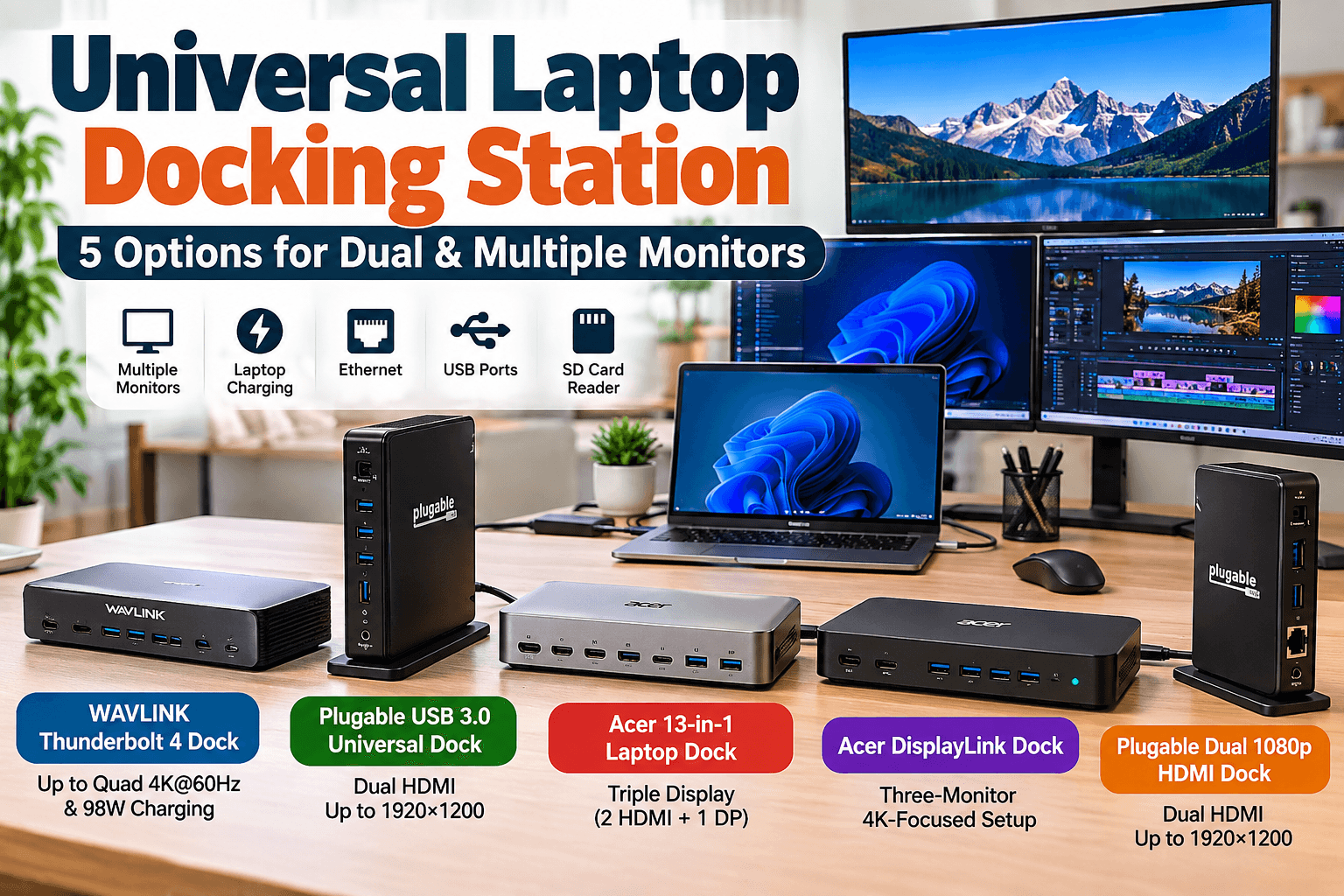
Quick Comparison: Universal Laptop Docking Stations
| Docking Station | Display Setup | Connection | Best For | Check Price |
|---|---|---|---|---|
| WAVLINK Thunderbolt 4 Dock | Up to Quad 4K@60Hz | Thunderbolt 4 | Advanced multi-monitor workstations | Check Price → |
| Plugable USB 3.0 Universal Dock | Dual HDMI up to 1920×1200@60Hz | USB-A / USB-C | Everyday dual-monitor productivity | Check Price → |
| Acer 13-in-1 Laptop Dock | Triple Display (2 HDMI + 1 DP) | USB-C | Multi-port desktop setups | Check Price → |
| Acer DisplayLink Dock | Three-Monitor 4K-Focused Setup | USB-C / DisplayLink | Multi-monitor Mac and PC setups | Check Price → |
| Plugable Dual 1080p HDMI Dock | Dual HDMI up to 1920×1200@60Hz | USB-C / USB-A | Simple dual-monitor office setups | Check Price → |
Before buying any dock, check your laptop’s operating system, USB-C/Thunderbolt capabilities, monitor inputs, charging requirements, and the manufacturer’s compatibility information.
1. WAVLINK Thunderbolt 4 DisplayLink Dock — For Advanced Multi-Monitor Setups
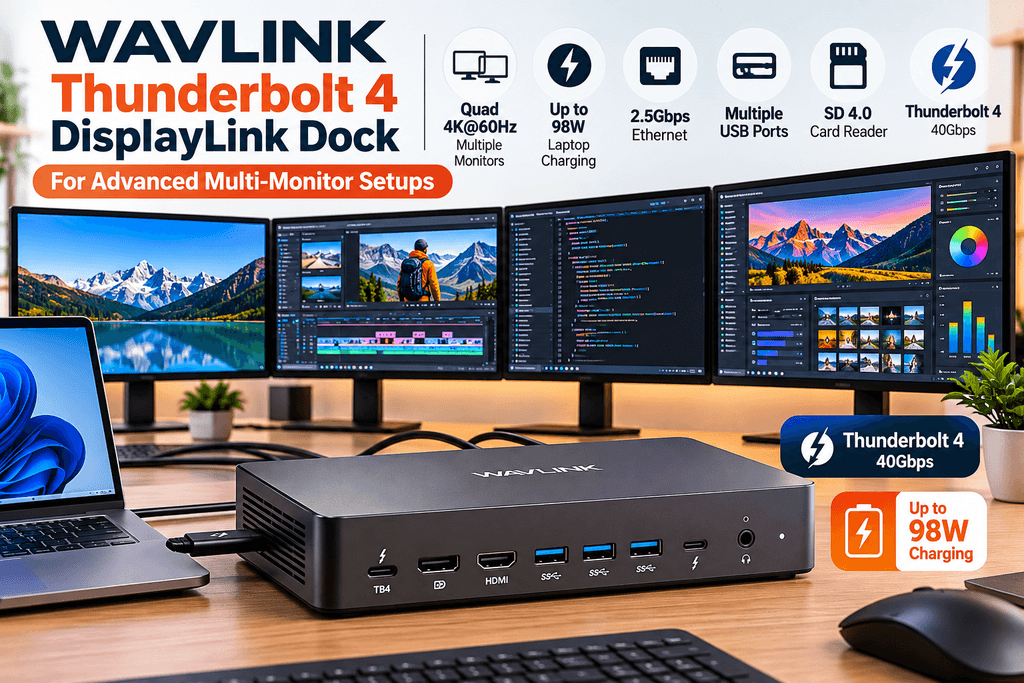
The WAVLINK ThunderDock Quattuor is the most ambitious docking station in this selection. It combines Thunderbolt 4 with DisplayLink technology and is designed for users building a large multi-monitor workstation.
WAVLINK specifies 40Gbps Thunderbolt 4 connectivity, up to four 4K@60Hz displays in supported configurations, 2.5Gbps Ethernet, USB ports, an SD 4.0 reader, audio, and up to 98W host charging. The dock’s HDMI/DisplayPort DisplayLink outputs require a driver. Wavlink.com
This makes it particularly interesting if your definition of a docking station laptop multiple monitors setup extends beyond a basic pair of displays.
WAVLINK also specifies support for Windows 10/11 systems with Thunderbolt 4 and macOS 11 or later systems with Thunderbolt 3/4, subject to the appropriate display configuration and driver requirements. Wavlink.com
| Category | Details |
|---|---|
| Key Features | Thunderbolt 4 connectivity • Up to quad 4K@60Hz display setup • Up to 98W laptop charging • 2.5Gbps Ethernet • Multiple USB ports • SD 4.0 card reader |
| ✓ Pros | Excellent multi-monitor support • Fast 40Gbps Thunderbolt 4 connection • High-power laptop charging • Fast wired networking • Extensive workstation connectivity |
| ✕ Cons | DisplayLink driver required for HDMI/DisplayPort outputs • More complex than a basic dual-monitor dock • Laptop and display compatibility should be checked before purchase |
| Check Price on Amazon → | |
Best for: Users who need a high-end laptop docking station for multiple monitors and want Thunderbolt 4 connectivity, charging, Ethernet, and numerous expansion ports in one desktop hub.
2. Plugable USB 3.0 Universal Laptop Docking Station — Dual HDMI
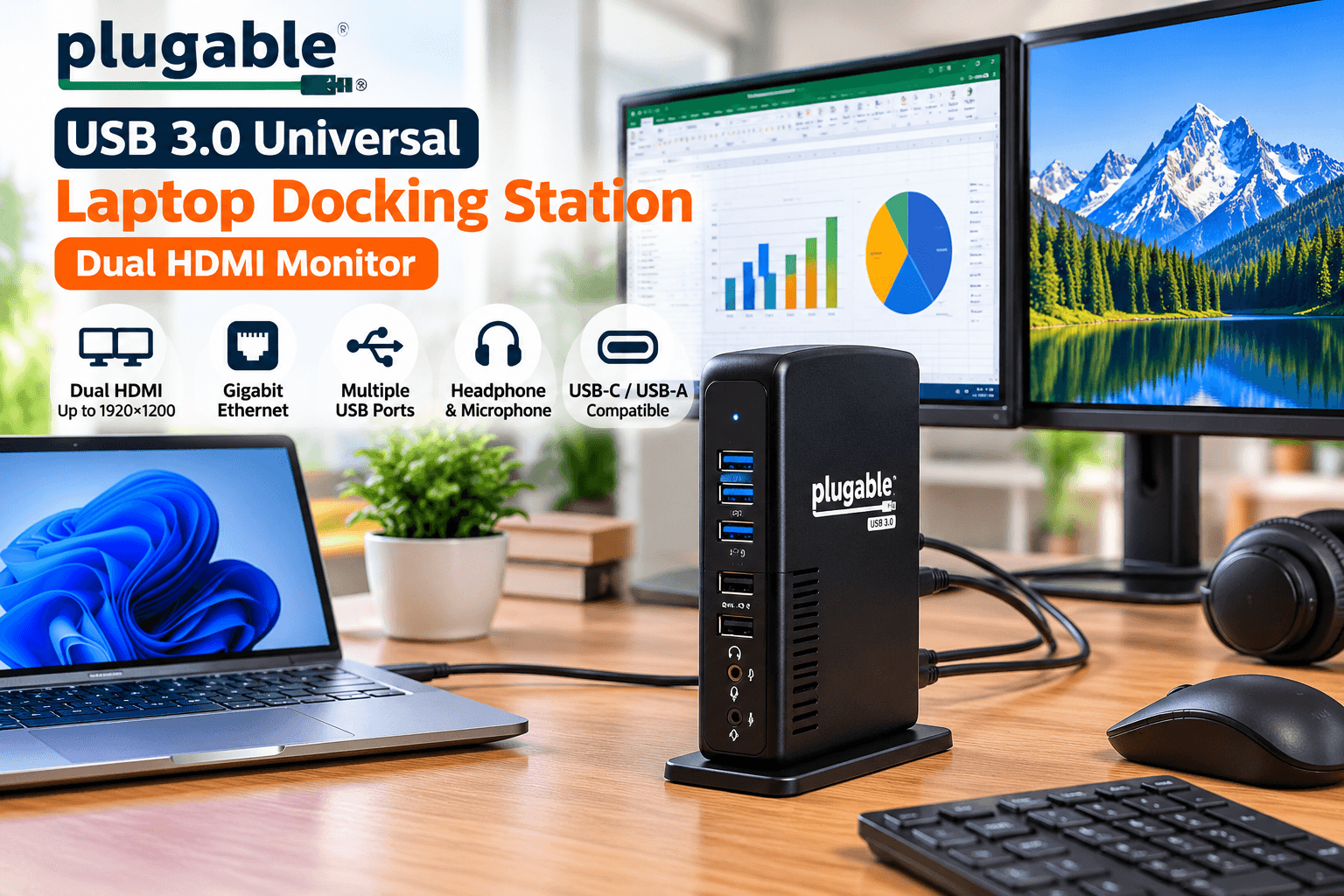
For a conventional dual-monitor office workstation, the Plugable UD-3900 takes a different approach.
The current UD-3900 provides two HDMI outputs, Gigabit Ethernet, headphone and microphone connections, two USB 3.0 ports, and four USB 2.0 ports. A hybrid cable allows connection to USB-A or USB-C computers. Plugable Technologies
The dock supports two displays up to 1920×1200 at 60Hz, while a single display can reach 2560×1440 at 50Hz. It uses DisplayLink for video. Plugable Technologies
That makes it a practical laptop docking station for dual monitors when the main workload involves browsers, documents, spreadsheets, email, and similar productivity applications.
There is an important limitation: the UD-3900 does not charge the host laptop, so the laptop’s normal charger must remain connected. Plugable also states that it is not intended for gaming or HDCP-protected playback. Plugable Technologies
| Category | Details |
|---|---|
| Key Features | Dual HDMI outputs • Up to 1920×1200@60Hz on two displays • USB-A and USB-C host connectivity • Gigabit Ethernet • 2× USB 3.0 ports • 4× USB 2.0 ports • Headphone and microphone connections |
| ✓ Pros | Practical dual-monitor office setup • Supports both USB-A and USB-C host connections • Plenty of USB ports for peripherals • Built-in Gigabit Ethernet • Good option for everyday productivity |
| ✕ Cons | Does not charge the host laptop • No 4K dual-monitor output • DisplayLink software required for display functionality • Not designed for gaming or HDCP-protected content |
| Check Price on Amazon → | |
Plugable confirms that the current version introduced in 2025 has two HDMI outputs, replacing the HDMI+DVI configuration found on the older UD-3900. kb.plugable.com
Best for: Home offices and business users who primarily need two external monitors and additional desktop ports rather than high-resolution gaming or laptop charging.
3. Acer 13-in-1 Laptop Docking Station — Triple Display Connectivity
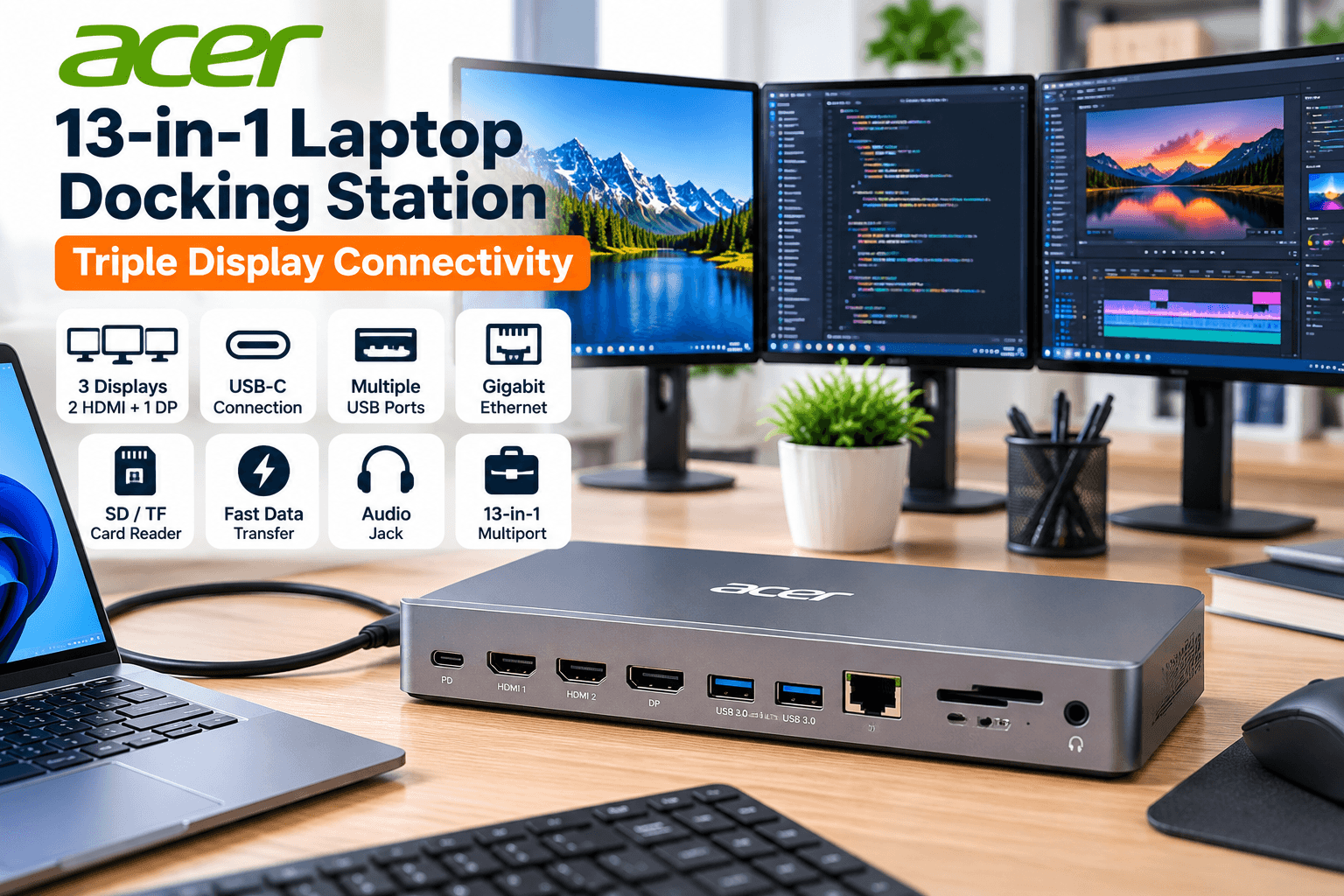
The Acer 13-in-1 option is aimed at users who want to turn one USB-C connection into a more complete desktop workstation.
The Amazon listing supplied for this guide describes a triple-display configuration using two HDMI outputs plus one DisplayPort, making this a particularly relevant option for someone searching for a docking station for laptop multiple monitors.
A multiport dock like this can be useful when the objective is not merely adding displays but consolidating the peripherals normally spread across a desk.
That can include monitors, USB accessories and other workstation connections.
However, multi-display support over USB-C can depend heavily on the host laptop. USB-C connectors look identical even though the capabilities behind them can differ. Before buying, verify that your particular laptop and operating system support the display arrangement you intend to use.
| Category | Details |
|---|---|
| Key Features | 13-in-1 multiport design • USB-C host connection • Triple-display connectivity • 2× HDMI + 1× DisplayPort • Multiple USB ports • Gigabit Ethernet • SD/TF card reader • Audio connectivity |
| ✓ Pros | Large selection of connectivity ports • Three-display-oriented workstation setup • HDMI and DisplayPort flexibility • Built-in Ethernet and card reader • Useful for consolidating multiple laptop accessories |
| ✕ Cons | Multi-monitor capability depends on the host laptop • USB-C capabilities vary between laptops • Display compatibility should be checked before purchase • Large port selection may be unnecessary for basic users |
| Check Price on Amazon → | |
Best for: Users who prioritize a large selection of ports and want HDMI plus DisplayPort flexibility for a multi-display desk.
4. Acer DisplayLink Docking Station — For Three-Monitor Workstations
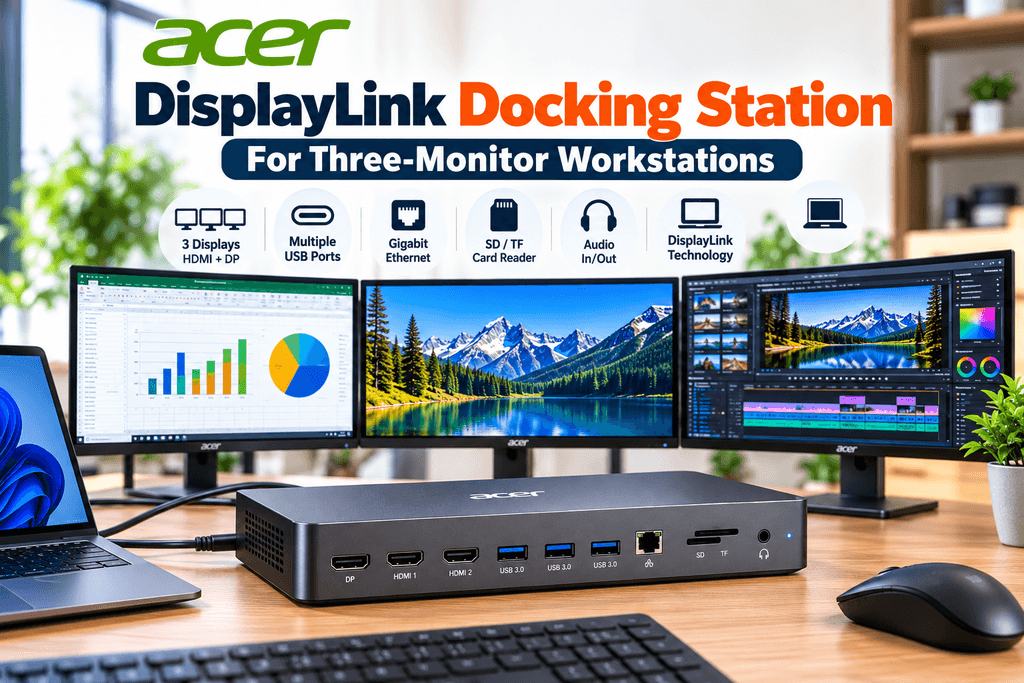
This Acer DisplayLink model takes a more specialized approach to multi-monitor expansion.
The supplied product listing identifies it as a three-monitor DisplayLink docking station with 4K@60Hz-focused display support and USB-C connectivity for MacBook and other compatible computers.
DisplayLink-based docks can be especially useful when a workstation needs more external displays than the laptop’s native display outputs would otherwise make convenient.
The tradeoff is software dependency. DisplayLink configurations require compatible software and operating-system support, so this is not the type of accessory to purchase solely by counting the physical HDMI or DisplayPort sockets.
If your objective is a three-screen productivity setup, verify your laptop model, operating system, DisplayLink requirements, and desired monitor resolutions before ordering.
| Category | Details |
|---|---|
| Key Features | DisplayLink-based USB-C docking station • Designed for three-monitor workstations • 4K@60Hz-focused display capability • Multiple USB ports • Ethernet connectivity • Built for compatible MacBook and PC setups |
| ✓ Pros | Strong three-monitor productivity setup • Useful for expanding compatible Mac and PC workstations • DisplayLink technology provides flexible multi-display expansion • Multiple connectivity options • Suitable for productivity-focused desktop setups |
| ✕ Cons | DisplayLink software is required • Monitor support can vary by laptop and operating system • Exact display configuration should be checked before purchase • More complex than a basic dual-monitor dock |
| Check Price on Amazon → | |
Best for: Users specifically building a three-monitor Mac or PC productivity workstation and who are comfortable using DisplayLink software.
5. Plugable Dual 1080p HDMI Universal Docking Station — UD-3900Z
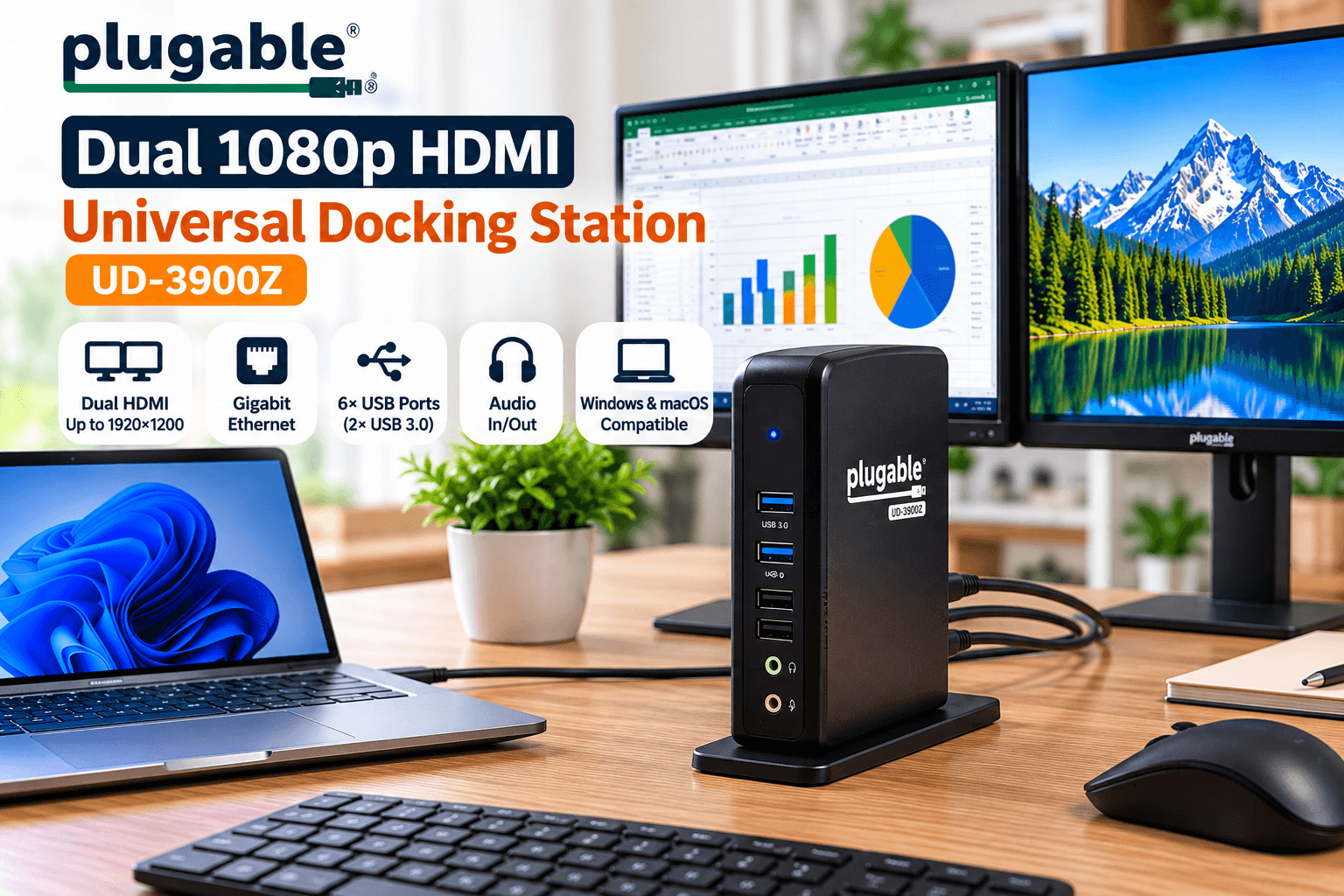
The Plugable UD-3900Z is another productivity-oriented universal docking station for laptop users who need two external displays rather than a complex four-monitor environment.
Plugable specifies dual HDMI displays up to 1920×1200, two 5Gbps USB ports, four USB 2.0 ports, Gigabit Ethernet, and a 3.5mm audio connection. Both USB-C and USB-A host cables are included. Plugable Technologies
The dock works across Windows, macOS, and ChromeOS environments, although macOS requires DisplayLink software for the external displays. Plugable positions this model primarily for business software, web applications, and everyday productivity rather than gaming. Plugable Technologies
Like the UD-3900 above, the UD-3900Z does not charge the laptop. Plugable Technologies
| Category | Details |
|---|---|
| Key Features | Dual HDMI display outputs • Up to 1920×1200 external displays • USB-C and USB-A host connectivity • 2× 5Gbps USB ports • 4× USB 2.0 ports • Gigabit Ethernet • 3.5mm audio connectivity |
| ✓ Pros | Simple dual-monitor productivity setup • Supports both USB-C and USB-A laptops • Six USB ports for desktop peripherals • Built-in Gigabit Ethernet • Useful for everyday office and work-from-home setups |
| ✕ Cons | Does not charge the host laptop • Designed around 1080p/1920×1200-class productivity rather than 4K multi-monitor use • DisplayLink software required for macOS display functionality • Not intended for gaming or protected video playback |
| Check Price on Amazon → | |
Best for: Straightforward dual-monitor workstations where broad USB-A/USB-C host compatibility matters more than 4K output or laptop charging.
How to Choose a Universal Laptop Docking Station
The term “universal” can be misleading if it is interpreted as “works identically with every laptop.”
Docking-station compatibility depends on the laptop’s ports, operating system, graphics capabilities, drivers, and the technology used by the dock.
Before choosing one of these products, consider the following factors.
1. Decide How Many Monitors You Actually Need
For a simple work-from-home desk, two monitors may be enough.
In that situation, a Plugable dual-display dock can provide the necessary screen expansion without paying for capabilities you may never use.
A user working with large spreadsheets, analytics dashboards, development environments, financial applications, or creative tools may benefit from three or four displays instead.
That is where the WAVLINK and multi-monitor Acer models become more relevant.
2. Check USB-C vs Thunderbolt
A USB-C connector does not automatically mean Thunderbolt support.
Thunderbolt 4 provides substantially more capability than a basic USB connection, but both the dock and host laptop must support the required technology to use those features.
For example, WAVLINK’s UTD41 uses Thunderbolt 4 and specifies up to 40Gbps connectivity. Wavlink.com
Always check your laptop’s technical specifications rather than relying only on the physical shape of the port.
3. Understand DisplayLink
Several docks in this comparison use DisplayLink.
DisplayLink sends display data over a USB connection using software and compatible hardware. This can make it possible to build flexible multi-monitor configurations, including on computers with more restrictive native display capabilities.
However, software installation may be necessary.
Plugable, for example, explicitly requires DisplayLink software for its UD-3900 display functionality on Windows/macOS, while its macOS documentation lists the UD-3900 among its recommended DisplayLink products. Plugable Technologies
For office productivity, this can be a useful solution. For gaming, high-frame-rate applications, or protected streaming content, check the manufacturer’s limitations carefully.
4. Check Whether the Dock Charges the Laptop
This is an easy specification to overlook.
A USB-C dock does not necessarily charge the host laptop.
The WAVLINK UTD41-B can provide up to 98W Power Delivery to the host. Wavlink.com
By comparison, Plugable explicitly states that the UD-3900 and UD-3900Z do not charge the host laptop. Plugable Technologies
If a one-cable desk is your priority, host charging should therefore be near the top of your checklist.
5. Consider Your Monitor Inputs
Before ordering, check whether your monitors use:
- HDMI
- DisplayPort
- USB-C/Thunderbolt
- an older interface requiring an adapter
A laptop docking station for dual monitors with two HDMI outputs is convenient when both monitors already have HDMI.
For a three-monitor workstation with mixed monitor inputs, a dock combining HDMI and DisplayPort may provide more flexibility.
6. Think About Ethernet and USB Devices
A dock can replace much more than a display adapter.
Consider what will remain permanently connected at your desk:
- keyboard
- mouse
- external SSD
- printer
- webcam
- microphone
- Ethernet
- speakers/headphones
- SD card
- other USB accessories
A high-port-count docking station makes more sense when several of these devices are used simultaneously.
If you regularly work with external drives, you can also compare our guide to external solid state drive 2TB options for portable high-speed storage.
For larger-capacity backup storage, see our external hard drive 4TB comparison.
7. Docking Station vs Laptop Stand and Docking Station
A laptop stand and docking station solve related but different problems.
A stand primarily changes the physical position of the laptop, which can improve screen height and free desk space.
A docking station expands connectivity.
Some users may benefit from using both: the laptop sits elevated on a stand while a separate docking station handles monitors, USB peripherals, Ethernet, and charging.
When choosing between an integrated stand-and-dock design and a standalone dock, consider whether you value portability or a more permanent desk arrangement.
Which Type of Dock Fits Your Setup?
For an advanced workstation with several high-resolution displays, the WAVLINK Thunderbolt 4 model offers the broadest display and connectivity capabilities among these five products.
For a conventional dual-monitor office desk, the two Plugable options focus more heavily on practical productivity and broad USB host compatibility.
The Acer 13-in-1 model is more relevant when port variety and a three-display-oriented setup are priorities, while the Acer DisplayLink option targets users specifically looking to expand a Mac or PC into a three-monitor environment.
There is no single dock that is automatically right for every laptop.
The best approach is to start with your actual monitor count, laptop ports, operating system, charging requirement, and peripheral list—and then choose a dock that supports that specific configuration.
Frequently Asked Questions
What is a universal laptop docking station?
A universal laptop docking station is designed to provide expanded connectivity across a range of compatible laptops rather than being built exclusively for one proprietary laptop model.
Depending on the dock, it may add external displays, USB ports, Ethernet, audio, storage-card readers, and laptop charging.
“Universal” does not guarantee that every feature works with every laptop, so compatibility still needs to be checked.
Can a docking station support multiple monitors?
Yes. Depending on the model, a dock may support two, three, or even four external displays.
For example, WAVLINK specifies supported quad 4K@60Hz configurations for its UTD41-B, while Plugable’s UD-3900 is designed for dual displays up to 1920×1200@60Hz. Wavlink.com
Can I use a laptop docking station for dual monitors?
Yes, provided the docking station and laptop support the required display configuration.
Dual-HDMI models such as the current Plugable UD-3900 are specifically designed around dual-display productivity. Plugable Technologies
Does every USB-C docking station charge a laptop?
No.
USB-C is the connector type, but charging depends on the dock and laptop supporting the appropriate USB Power Delivery configuration.
For example, WAVLINK’s UTD41-B supports up to 98W host charging, whereas Plugable states that the UD-3900 does not charge the host computer. Wavlink.com
Do DisplayLink docking stations require drivers?
Often, yes.
The exact requirement depends on the dock and operating system. Plugable states that DisplayLink software is required for UD-3900 display functionality on Windows and macOS, with Windows capable of installing it through Windows Update and macOS requiring manual installation. Plugable Technologies
Can I use a docking station with a MacBook?
Some docking stations support macOS, but compatibility differs by product and Mac model.
WAVLINK lists macOS 11 or later with a Thunderbolt 3/4-equipped Mac for the UTD41-B, while Plugable supports the UD-3900 on modern macOS systems using DisplayLink. Wavlink.com
Always check the manufacturer compatibility information for your exact Mac before purchase.
Final Thoughts
A universal laptop docking station can turn a portable computer into a much more capable desktop workstation, but the right model depends on what you actually connect to it.
Users who need two standard productivity monitors have different requirements from professionals building three- or four-screen workstations. Charging, DisplayLink support, USB speed, Ethernet, monitor resolution, and host compatibility can matter just as much as the number of ports printed on the product page.
Before buying, verify your exact laptop model and monitor configuration, then choose the dock whose specifications match your setup rather than simply selecting the model with the largest number of ports.